INCLUDE
Use INCLUDE to execute independent
files or another object's login script as a part of the
login script currently being processed.
These subscripts can be text files that contain
valid login script commands (any of the commands
explained in this topic) or login scripts that
belong to a different object you
have rights to.
INCLUDE has either of the following command formats:
INCLUDE [path]filename
INCLUDE object_name
To use a
text file as a subscript, replace path with
either a drive letter or a full directory
path beginning with the NetWare volume name.
Replace filename with the complete name (including the
extension) of the text file.
To execute another object's login script as part
of a login script, replace object_name with the
name of the object whose login script you
want to use.
Text files that contain login script commands and
other object's login scripts can be used as
subscripts. Use these subscripts to supplement the main
login script.
You can create and edit text file subscripts
using any text editor. Subscripts do not have
to have any particular filenames or extensions.
The INCLUDE command executes the login script commands
contained in the subscript. It does not display
the text of the subscripts.
INCLUDE nesting is limited only by available memory.
This means that one subscript file can include
another subscript file, which can include yet another
subscript file, and so on.
If the subscript is a text file, users
must have at least File Scan and Read
rights to the directory containing the subscript.
If you are using another object's login script
as a subscript, users must have the Browse
right to the object whose script you are
including and the Read right to the object's
Login Script property.
For example:
-
To execute a text file called SCRIPT.NEW
(located in the VOL1: volume) as a subscript, add
the following line to your main login script:
INCLUDE VOL1:ADMIN\USERS\SCRIPT.NEW
-
Suppose you are creating a container login script
for all users under the Organizational Unit object
SALES_LA. You recently created a container login script
for users under the
Organizational Unit object SALES_PV.
Now you've decided that the login scripts for
the two different groups of users are very
similar. In fact, you decide that the SALES_LA
users could use the same login script as
the SALES_PV users, but with a few more
drive mappings.
In the SALES_LA login script, you could add
the additional drive mappings, and then use the
INCLUDE command to execute the entire SALES_PV login
script as a part of the SALES_LA
login script, as follows:
-
Create an alias for the SALES_PV Organizational Unit
in the SALES_LA Organizational Unit.
-
Add this line to the SALES_LA Organizational Unit's
login script.
INCLUDE .SALES_PV_ALIAS.SALES.ACME_US
``Using INCLUDE in a login script''
illustrates how the INCLUDE command executes the SALES_PV
login script as part of the SALES_LA login script.
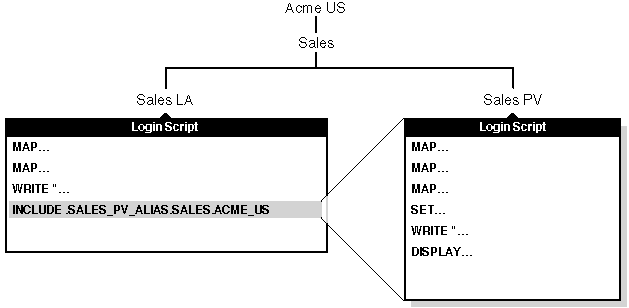
Using INCLUDE in a login script
© 1999 The Santa Cruz Operation, Inc. All rights reserved.
UnixWare 7 Release 7.1.1 - 5 November 1999