You create menu files with a text editor and save the file with an .SRC extension. Then you use the MENUMAKE program to compile the file. It is given a .DAT extension and, as a compiled file, is no longer editable. Any edits must be made to the .SRC file and then the .SRC file must be recompiled.
There are three primary elements to every menu: MENU, ITEM, and EXEC. As these elements are expanded and repeated, controlled options are displayed within each window.
The following display shows the .SRC file used to create a menu. This file shows how these three elements are used. Details about these elements and their options are covered in ``Using the NMENU commands''.
   Menu 1, Title Bar
      Item One {pause}
         Exec dir
      Item Two {show pause}
         Exec ver
      Item ^XExit
         Exec EXIT
MENU specifies a window within the menu file. It includes a menu number and a menu name. The menu name is the title bar for the menu.
ITEM includes the text the user will see. It is given an indicator letter by default, or you can determine the character to precede it. Each option to be displayed in the window must be preceded by the word ``ITEM''.
Some options are available for the ITEM line; these options are discussed in ``ITEM''.
EXEC is the primary command for the third element. In the menu file, EXEC issues three separate commands: a directory listing, a display of the current version of DOS running, and a command to exit the menu.
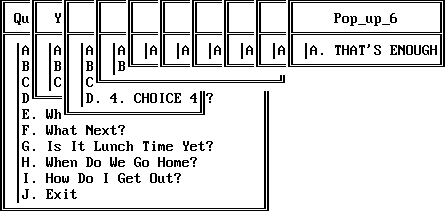
``A multiple-window menu'' illustrates a menu with 10 windows, created by including 10 MENU commands in the same file. Each window is automatically sized and cascaded across the screen.
A multiple-window menu
There are generally six steps to follow when considering a new menu. The relationship among steps is shown in ``Charting the steps in creating a menu''.
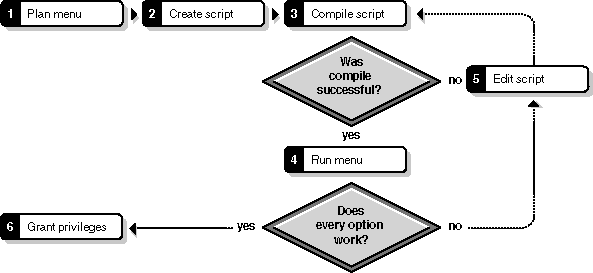
Charting the steps in creating a menu
Each step in the flowchart is explained next.
The results of any errors occurring during the compile process, including detailed error messages per line of script, are displayed on your screen. Fix the errors in the .SRC version of the file according to the error messages, and then recompile.
When you have eliminated all the errors, continue with Step 4.
Information on placement of files and required rights is in ``Making menus work''.
Use of the NMENU program is almost unlimited. When considering the uses for menus, remember that they can be as simple as presenting available application programs (see ``Example of a simple menu'').
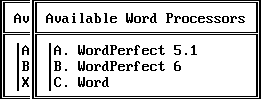
Example of a simple menu
Menus also can be more complex, such as guiding data entry for cataloging (see ``Example of a more complex menu'').
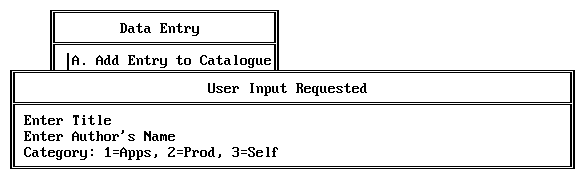
Example of a more complex menu
The text used to create the four menus discussed in this topic is included in ``Creating a menu file''.
Before you look at how these menus were created, however, you should be familiar with the guidelines for planning menus and also with the scripting language rules.