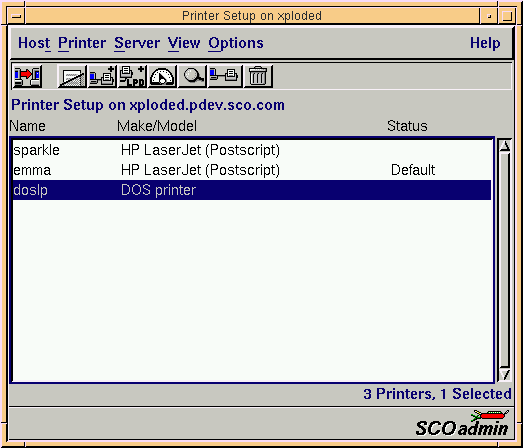
The Printer Setup Manager interface
Use the Printer Setup Manager
to add and remove printers and
manage the print service.
You can start the Printer Setup Manager
in any of these ways:
-
Choose SCOadmin from the SCO menu (above
the SCO logo) on the CDE desktop, then select
Printer Setup Manager.
-
Start the SCOadmin launcher by entering scoadmin
on the command line, then selecting
Printer Setup Manager.
-
Enter scoadmin printer manager on the command line
(or abbreviate to scoadmin printer).
For more information on using SCOadmin managers, see
``Administering your system with SCOadmin''.
Printer Setup Manager menus
|
Host
|
Printer
|
Server
|
|---|
|
Open Host
|
Add Local Printer
|
Start
|
|
Open Host Group
|
Add TCP/IP Printer
|
Halt
|
|
Exit
|
Add Netware Printer
|
|
|
|
Copy
|
|
|
|
Properties
|
|
|
|
Make Default
|
|
|
|
Control
|
|
|
|
Set User Access
|
|
|
|
Set Remote Access
|
|
|
|
Nprinter
|
|
|
|
Delete
|
|
|
View
|
Options
|
|
|
Set Auto Refresh
|
Point Help
|
|
|
Refresh Now
|
Toolbar
|
|
|
|
Customize Toolbar
|
|
NOTE:
<Del> has no effect on the Printer Setup Manager.
<Ctrl>C puts the terminal into raw mode, and should be avoided.
Next topic:
Adding, modifying, or copying a local printer
Previous topic:
Managing the print service
© 1999 The Santa Cruz Operation, Inc. All rights reserved.
UnixWare 7 Release 7.1.1 - 5 November 1999