


The Profile Manager provides access to all ARCserveIT User profiles. Profiles can be created, viewed, and modified.
To open the Profile Manager, click the Profile icon from the ARCserveIT server's home page. The Profile Manager opens.
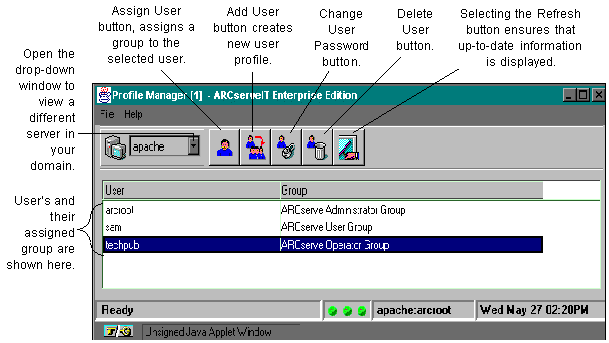

|
When ARCserveIT is installed, the arcroot user profile is assigned to the Administrator group by default. All additional ARCserveIT users that are created, can only be assigned to one group at a time.
|
A default user is created when ARCserveIT is installed. The default user name is "arcroot." To create a new user profile, use the following steps:
1. Open the Profile Manager.
2. Click the Add User button. 
The Add User dialog box appears:
3. Enter a user name and password into the appropriate fields.
4. Re-enter the user's password to confirm the first entry.
5. Select a group to be assigned to the newly created user.
For information on the characteristics of the three groups available for selection, see `Group definitions'.
If the default or currently assigned group profile does not meet the needs of a particular user, you can assign the user to a different group.
Follow the steps below to assign a group to a user:
1. Open the profile Manager.
2. Select the user from the Profile Manager.
3. Click the Assign Groups button.
The Assign Groups dialog box appears.
4. Select a new group profile.
5. Click OK.
To change a user's password:
1. Select the user from the Profile Manager window
2. Select the Change User Password button.
3. Enter the old password.
If you belong to the Administrator Group and you want to change a user who belongs to a non-Administrator group, you don't need to enter the old password.
4. Enter the new password.
5. Re-enter the new password.
6. Click OK.
To delete a user profile:
1. Select the user from the Profile Manager window.
2. Click the Delete User button. 
3. Click OK.
Refreshing the Profile Manager window
Refreshing the Profile Manager window ensures that the latest information is being displayed. To do this, click the Refresh button.