


Logging in and out of an ARCserveIT domain
Once ARCserveIT is running, you are ready to log in to the ARCserveIT server by logging in to the domain that server belongs to.
Follow the steps below to log in and access an ARCserveIT domain:
1. From any workstation, start the Java-enabled web browser you are utilizing.
2. In the location (address) field of the browser, enter the Host name (or IP address) of the machine running ARCserveIT's Web server, followed by the port number that server is using.
When configuring your ARCserveIT web server, the communication port that server will use is established. The Host name (or IP address) is followed by a colon (":"), preceded by the port number the server is utilizing. If you are using "80" as your port number you do not have to set it in the location address. The syntax for entering the complete address when using a Netscape browser is shown below: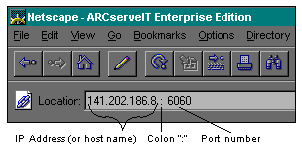

|
When using Microsoft Internet Explorer or a Hot Java browser you must precede the IP Address with "HTTP://".
|
Once the connection to the server is made, you will see the home page for that server.
3. From the server's home page, click on the icon of the ARCserveIT Manager you want to access.
If you are not currently logged into the ARCserveIT domain that the ARCserveIT server belongs to, you will be presented with the following dialog box: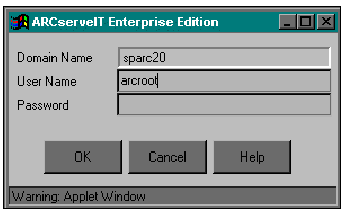
The Domain Name field will display the domain the selected server belongs to.
If you are logging in as the ARCserveIT root user, enter "arcroot".
5. Enter the password associated with the user name entered in the previous step.
When running the asetup script (during the ARCserveIT configuration process), you can set the password for the arcroot profile. If a password has been set for this profile, enter it at this time. Otherwise, initially, there is no password set for this profile and no entry in the Password field is required.
You will then be presented with the Host Server dialog box.
7. Select the Host server you would like to access.
Once the host server is selected, the selected manager window will be evoked. The ARCserveIT domain name, the user name used to log in, and the default host selected will be displayed on the bottom of the server's ARCserveIT home page for reference.
To log out of an ARCserveIT domain, click the "Log Off" button at the bottom left side of the ARCserveIT server's home page. ARCserveIT will then prompt you to confirm that you want to log out of the domain. Click "Yes" to log out. If you click "Yes", all open manager windows will be closed.