


You can use the Calendar View feature to customize your rotation scheme according to the types of backups you want for particular days of the week or month. This feature enables you to specify exceptions to the standard rotation scheme you are using.
1. From the Backup Manager, select the Method/Schedule tab.
Once the rotation scheme is selected, the cycle is shown in the list box. In this box, you can select either Overwrite or Append as the mode of writing to media. You must have at least one day within
5. Click the Calendar View tab at the bottom of the panel.
With your pointer on the date you want to be an exception, the backup method selection will change upon each lick of the mouse button.
The Calendar View begins on the Start Date you specified and displays information about the backup method for each date in symbolic form. This information also appears in word form, as shown in the figure above.
The Calendar View displays the following symbols for backup types on specific dates:
Symbol |
Description |
|---|---|
| |
| |
| |
| |
Select the Exception View tab:
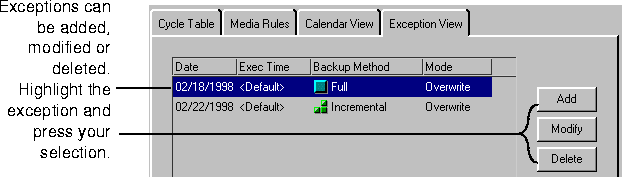
If you wish to add or modify an exception, press the Add or Modify button.
The Exception dialog box appears.
The Backup Method can be changed to the sections within the drop-down box. Backup Mode can be changed in the same manner.
|
For information on GFS cycles and set up, see `Selecting a Backup method'. |


