


Exception view will display a listing of any changes made to the backup cycle, whether they were made from the Cycle, Calendar, or Exception tab.
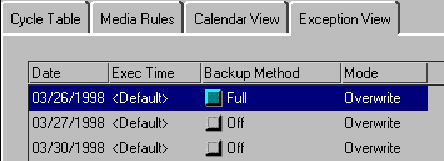
The figure below shows the Exception View including three instances where the backup methods have be altered from the original schedule:
 :
:
These exceptions will be reflected in all GFS related views.
ARCserveIT allows you to add exceptions to the current GFS backup cycle from any of the GFS related tabs. To add an exception from the Exception window:
2. Set the Date, and the Backup Method for the exception you want to add.
The exception you add, will be shown in all GFS related views.
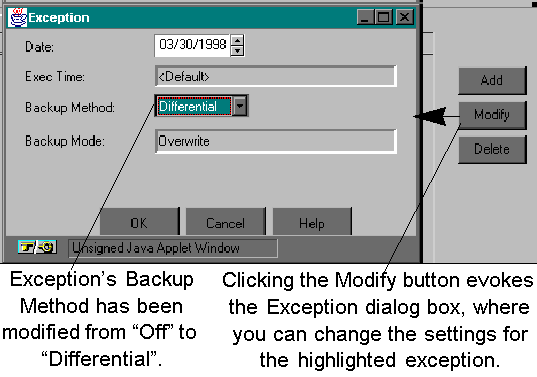
You can modify exceptions by highlighting a particular exception, then clicking the Modify button. Once this is done, the Exception dialog box appears.
To delete an exception from the Exception View window, highlight the exception you want to delete, then click the Delete button.
The exception you deleted will be removed from the Exception view, and the original scheduled setting will be shown in all GFS related views.