


ARCserveIT can help you find the volume, drive, directory, and files you need to restore. If you have several backups of a file, directory, drive, or volume, use the Version History button to list all the versions you have backed up so you can find the one that you need.
If you are unsure of what you want to restore, use the Find button to have ARCserveIT perform a search of the database to match the pattern you specify.
| You can only use Find and Version History when you are using the "Restore by File System" as your source view. |
Use the Version History button to help you select the version of the file, directory, drive, or volume you want to restore. By default, ARCserveIT will restore the last version backed up.
3. Click the Version History button.
Use the Find button to help you find files for which you are unsure of the name, or where they are located.
Follow the steps below to use the Find utility.
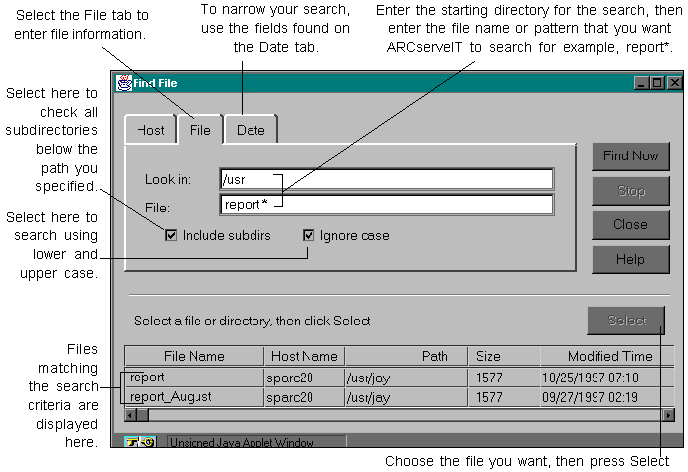
ARCserveIT supports all UNIX regular expressions. For example, you could search for anything beginning with report:
The following search patterns are acceptable as well:
After specifying your search criteria in the Find File dialog box and clicking Find Now, ARCserveIT will do a search in the database and return the names of all files that match the pattern specified.
ARCserveIT will search for files that have been modified within a specified time period. To search for files (by date) that have been modified:
2. Select the Date tab of the Find File dialog box.
3. Select to search for files using a range of dates, or using a certain number of days.
