Create new local groups for granting permissions to resources.
To create and define additional groups, use User Manager for Domains:
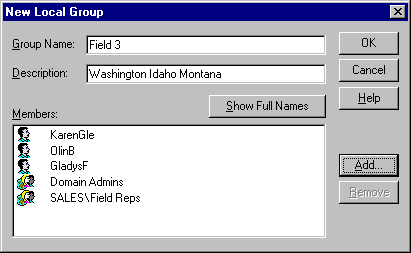
Create new local groups for granting permissions to resources.
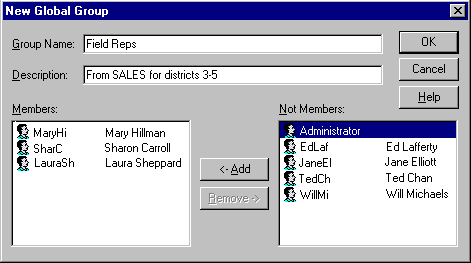
Create new global groups to organize users based on the type of work they do.
For example, suppose you have a color printer in your domain, and you want to restrict access to it:
1. Create a local group that has permission to print on the color printer.
2. Create a global group consisting of users who are allowed to use the color printer.
3. Add the global group to the local group.
4. Add or remove people who can use the printer by changing the membership of the global group.
If you want members of this group to be able to use a printer connected to a particular workstation or member server, add the global group to the local group that governs printing on that computer. Likewise, if a color printer is available on a trusting domain, you can place your global group into a local group in that domain.
For information about managing resource permissions, see Chapter 5, "Managing Shared Resources and Resource Security."
When adding a group you will be asked to provide a group name. It must be unique to the domain or to the computer being administered. A global group name can contain up to 20 characters. It can also contain any uppercase or lowercase characters except the following:
" / \ [ ] : ; | = , + * ? < >
A local group name can contain up to 256 characters. It can also contain any uppercase or lowercase characters except the backslash character (\).
A global group name cannot consist solely of periods (.) and spaces.
Note

When a group name is displayed and when the distinction is necessary, Advanced Server identifies the domain or workstation the group is from by presenting the name in the form DOMAINNAME\groupname or COMPUTERNAME\groupname. For example, a group named Managers from a domain named Engineering would be displayed as ENGINEERING\Managers.
To create a new group, either copy an existing group or create a completely new one. By copying, you ensure that the new group has the same members as the original group. However, the permissions and rights of the original group are not copied to the new group.
To create a new global group, give the group a name and then add members (user accounts in the local domain) to it.
Note
When Low Speed Connection is chosen on the Options menu in User Manager for Domains, global groups cannot be created, modified, or copied.
For information about managing global groups, see "Creating a New Global Group," "Copying a Global Group," and "Managing Global Group Properties" in User Manager for Domains Help.
To create a new local group, give the group a name and then add members (user accounts and global groups from the local domain or a trusted domain) to it.
For information about managing local groups, see "Creating a New Local Group," "Copying a Local Group," and "Managing Local Group Properties" in User Manager for Domains Help.
You can add new members or remove members or change the description of a local group or a global group by selecting a group in User Manager for Domains and clicking Properties on the User menu.
For information about adding, removing, or changing group members, see "Managing Global Group Properties" and "Managing Local Group Properties" in User Manager for Domains Help.
You can grant or revoke rights to and from users and groups. You cannot control other capabilities directly. They are granted to some built-in local groups when Advanced Server, Windows NT Server, or Windows NT Workstation is installed. The only way for you to grant a user one of these built-in capabilities is to make that user a member of the appropriate local group. For example, the only way to allow a person to create user accounts on a domain is to add that person’s account to either the Administrators or Account Operators local group on the domain.
The built-in capabilities of local groups for workstations and member servers, as well as for domain controllers, are listed in "Built-in Local Groups — Controlling What Users Can Do" earlier in this chapter. On Advanced Server domains, rights are granted and restricted on the domain level; if a group has a right in a domain, its members have that right on all primary and backup domain controllers in the domain. On each Windows NT Workstation computer and on each Windows NT Server computer that is not a domain controller, rights granted apply only to that single computer.
When you create new local groups in a domain, User Manager for Domains is used to grant rights to the group.
When you create new local groups on a workstation or member server, User Manager (or User Manager for Domains remotely) is used to grant rights to the group.
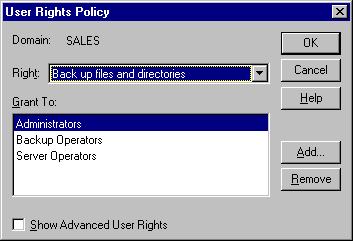
The User Rights command on the Policies menu lets you grant user rights to local groups. The User Rights Policy dialog box lists each right selected and the groups that have it. You can add or remove groups from the Grant To list.
For information about granting user rights, see "Managing the User Rights Policy" in User Manager for Domains Help.
Groups created with User Manager for Domains can be deleted, but the built-in groups provided with Advanced Server, Windows NT Server, and Windows NT Workstation cannot. Deleting a group removes only that group; it does not delete the user accounts or global groups that are members of the deleted group
A deleted group cannot be recovered, so be sure you want to delete a group before you do so. When you delete a group, the SID for the group account is deleted, and SIDs are used only once. For this reason, resource permissions associated with the group cannot be reestablished by creating a new group using the same account name.
For information about deleting groups, see "Deleting a Local Group" and "Deleting a Global Group" in User Manager for Domains Help.