You can audit the access of files and folders on NTFS volumes and network drivers to identify who took various types of actions with the files and folders and hold those users accountable for their actions.
When you audit a file or folder, an entry is written to the Advanced Server security log whenever the file or folder is accessed in a certain way. You determine which files and folders to audit, whose actions to audit, and exactly which types of actions are audited.
To set auditing on a file or folder, use User Manager for Domains to enable auditing of File and Object Access, and then use Explorer to specify which files to audit and which type of file access events to audit. To view audit entries, use the Event Viewer.
You can audit the following types of directory and file access for successful and failed attempts:
|
Types of directory access |
Types of file access |
|
Displaying names of files in the directory |
Displaying the file’s data |
|
Displaying directory attributes |
Displaying file attributes |
|
Changing directory attributes |
Displaying the file’s owner and
|
|
Creating subdirectories and files |
Changing the file |
|
Going to the directory’s subdirectories |
Changing file attributes |
|
Displaying the directory’s owner and permissions |
Running the file |
|
Deleting the directory |
Deleting the file |
|
Changing directory permissions |
Changing the file’s permissions |
|
Changing directory ownership |
Changing the file’s ownership |
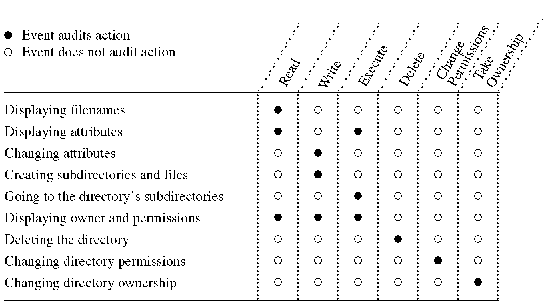
To audit the following activities on a directory, select from among the events displayed in the following table.
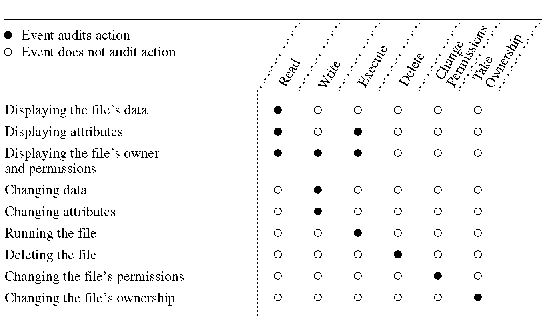
To audit the following activities on a file, select from among the events shown in the following table.
For more information about auditing printers, see Chapter 6, "Setting Up Print Servers."
This section discusses the following topics:
You can archive an event log in log-file format so that you can reopen it later in Event Viewer. Or the log can be saved in text format or comma-delimited text format so that you can use the archived information in other applications.
For example, you can archive security logs so that you can monitor security events over a period of time. Or you can archive application logs so that you can track the Warning and Error events that occur for specific applications.
When you archive a log file, the entire log is saved, regardless of any filtering options specified in Event Viewer. If you changed the sort order in Event Viewer, event records are saved exactly as displayed if you archive the log in a text or comma-delimited text file.