Note: Use the Netscape Server Manager to start the Server Selector.
This chapter contains the following sections:
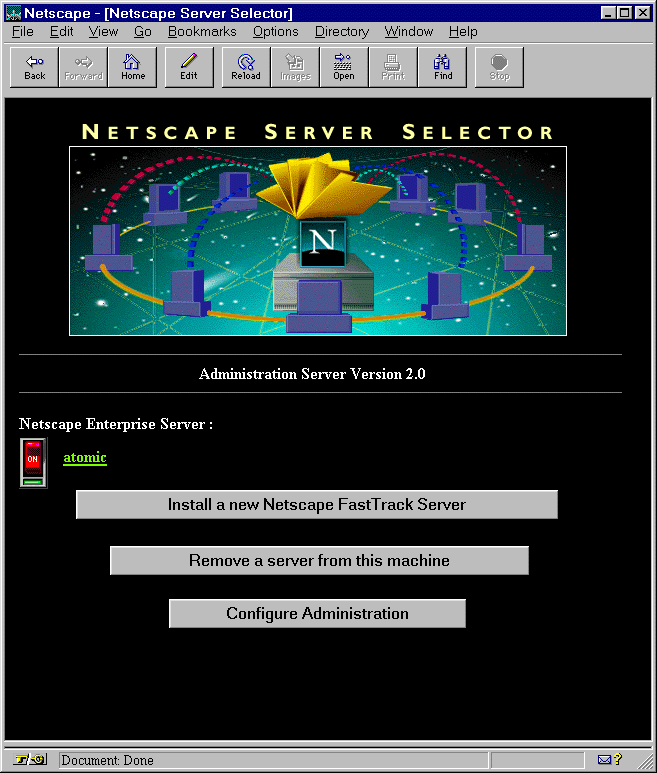
The Server Selector is the interface that allows you to select a server to configure. Using the Server Selector, you can manage one web server, multiple web servers that are installed on different ports on one machine, and multiple servers that answer to different domains. You can perform the following tasks from the Server Selector:
http://[servername].[your_domain].[domain]:[port_number]/
Use the port number for the administration server that you specified during
installation; this is not the port number for the web server.
If you stopped the administration server after installation, you must start the administration server before you can configure your server. Go to the /usr/internet/ns_httpd directory and type ./start-admin. This starts the administration server using the port number you specified during installation. When you are finished configuring your servers, you should stop the administration server by typing ./stop-admin in the /usr/internet/ns_httpd directory.
./stop-admin in the server root directory.
NOTE Use the Netscape Server Manager to start the Server Selector to add and remove web servers.
You can install another web server on your current machine without going through the installation program. Your new web server can share its configuration with an existing web server on your system, or it can use its own separate configuration files.
Each web server you have installed can run on any TCP/IP port on your system, but you cannot run two web servers on the same port at the same time. If your system is configured to listen to more than one IP address, two or more web servers can share the same port as long as they use different IP addresses. (You should contact your system's vendor for information on how to configure your system to respond to different IP addresses.) Your web server software license allows you to have as many web server instances as you want on one system. If your system is configured to listen to multiple IP addresses, enter one of the IP addresses your system is hosting for each server you're installing. You must have a separate server process running for each of your IP addresses. You now have several subdirectories in your ns-home directory; each of these servers can be managed from the Server Selector. To set up a new web server on your system and have it share its configuration with an existing web server on your system, see "Setting up software virtual servers" in Chapter 4. When web servers share the same configuration files, they will either all be unsecure or secure. (For more information about security and servers, see Chapter 7.) They will also all use the same port number, so sharing configuration files is only useful if you are setting up web servers to handle several domains on your system.To set up multiple servers that respond to different IP addresses, install separate instances of the server into the same directory by clicking Install a new Netscape FastTrack Server from the Server Selector. If you installed your server before configuring your system to host multiple IP addresses, configure your system to respond to different IP addresses, change the server's bind address using the Server Manager (see "Configuring network settings" in Chapter 5), and install separate instances of the server for each IP address.
To install another web server with its own separate configuration files,
NOTE
Use the Netscape Server Manager to start the Server Selector
to remove web servers.
You can remove a server from your system using the Server Selector. Be sure that you will not need the server anymore. You should shut down the server before removing it; do this by clicking the on/off icon to the left of the server name in the Server Selector.
To remove a server from your machine,NoteDo not remove the administration binaries if there is more than one server installed.
admserv/httpd-[server_name] directory in the server root directory.
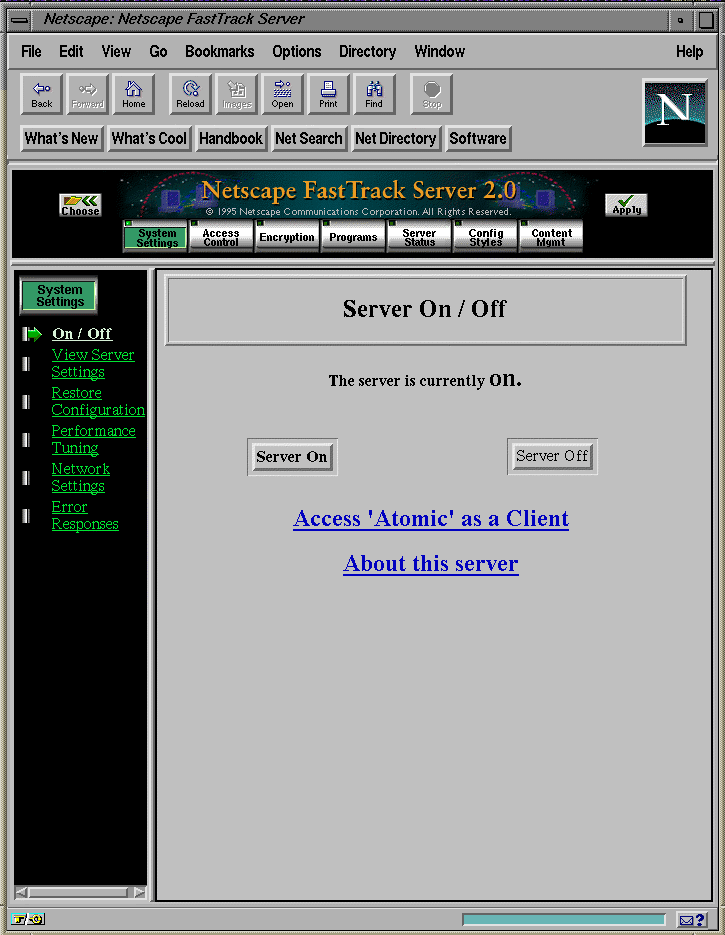
NoteYou must save and apply your changes in order for your changes to take place. After you submit a form, you get a pointer to a script that allows you to save and apply your changes. You can return to the Server Selector by clicking Choose in the upper left corner of the Server Manager. The Server Manager is shown in the following figure.
Use the server configuration buttons to configure the server. After clicking on a button, you'll see a list of items on the left. Click one of these links; the corresponding form comes up in the main frame. Most of the Server Manager forms configure the entire server. Some forms can configure the entire server or files or directories the server maintains. These forms have the Resource Picker, shown in the following figure, at the top. The Resource Picker lets you specify what resource to configure.
Resource Picker
Pick a resource from the drop-down list for configuration. Click Browse to browse your primary document directory; clicking on Options allows you to choose other directories. Click Wildcard to configure files with a specific extension. The following forms use the Resource Picker:
