


When you perform a backup or restore job, you must select a source and destination for your files and directories. Although your source and destination will vary depending upon the job you are running, the method for selecting files and directories is the same.
The primary method for selecting files and directories is from a graphical tree of all nodes, directories, and files displayed within the browser.
For the files stored on media, ARCserveIT uses its databases to create a browser tree of the files and directories that have been backed up.
The following figure shows the basic elements of the browser, including some of the icons that represent objects that are possible for backup and restore:
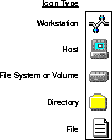
You can use the browser to select a machine name. You can also use the browser to select a disk volume, a database, a directory, or individual files within a directory.

|
You can only select non-UNIX servers or workstations if you have purchased the appropriate Client Agent option and you have added them to your database as a client. You can only select remote UNIX hosts if you have loaded a Client (or Backup) Agent on the remote host and added it to ARCserveIT's database.
|
The following sections explain how to use the Browser to select hosts, volumes, directories, and files.
Objects that have additional levels to be browsed are represented with the plus ( ) box, while objects with no additional levels to be browsed are represented with the minus (
 ) box.
To select a host or server:
1. Click the selection box ( ) next to the host or server.
This automatically selects the entire host or server. This requires the user to login to the machine.
To select an entire disk:
1. Select the host that you want to use.
Click the plus button next to the host. Once selected the plus box will turn into a minus box.
If you are not currently logged into or attached to the host, you will need to enter a login name and password.
2. Click the selection box ( ) next to the disk.
This automatically selects the entire disk for the operation.
To select individual directories:
1. Select the host or server that you want to use.
Click the plus box next to the host or server. A list of all directories will appear. If this is a server, a list of all volumes attached to that server will appear. (If you are not currently logged into or attached to the server, you will need to enter a login name and password.)
2. For servers only, select the volume that you want to use.
Click the plus box next to the volume until it points down. A list of all directories for that volume will appear.
3. Click the box next to the directory name to select the entire directory.
This automatically selects the entire directory for the operation.
To select individual files:
1. Select the host or server and volume that you want to use.
Follow steps one and two from the section above.
2. Select the directory you want.
Click the plus box next to the directory. A list of all files and subdirectories for that directory will appear.
You can continue selecting subdirectories, or start selecting files from the current directory.
3. Click the box next to the file name.
You can select as many files as you like.