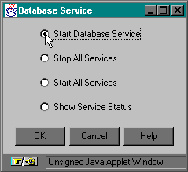
In addition to controlling ARCserveIT's services from the command line (see `Starting and stopping individual services'), you can control select ARCserveIT services from any of the ARCserveIT Managers. The back-end services accessible from each ARCserveIT Manager window include:
In addition to controlling the above services, you can start or stop all of the back-end services running on a host server by selecting "Start All Services" or "Stop All Services".
There are two methods available for use when accessing back-end services from an ARCserveIT Manager window:
Follow the steps below to access back-end services from the ARCserveIT File Menu:

3. Select "Start Service" or "Stop Service", depending on the required action.
The Status Bar at the bottom of each ARCserveIT Manager window displays an icon for each of the previously named back-end services:
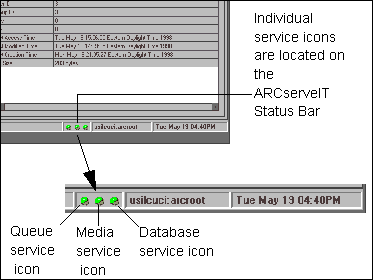
There are three states represented by these service icons. Services that are running are displayed in "green", and services that are down are displayed in "red". The third state is "yellow" which means that the arcserved daemon is either down, or the connection to it is broken. Since the arcserved daemon supplies all daemon status for a selected host server, the status of each daemon is therefore "unknown".
Follow the steps below to access back-end services from the ARCserveIT Status Bar:
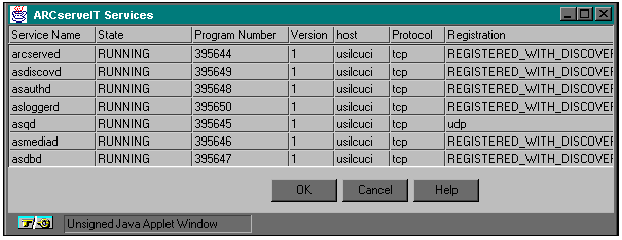
You can get detailed information about the services running on a server by clicking any of the service icons, then selecting "Show Service Status". The information displayed for each service includes:
A view of the detail window is shown below: