


The "Restore by Session" method allows you to select files to restore from all the media that have been used for backup jobs. From this list, you select the media you need for the restore job, the session, and the files and directories you want to restore. You can also use this method to restore an entire session.
Use "Restore by Session" if you already know what media the data you need to restore is on.

|
When restoring, you can only restore up to one session per job. If you try to select from different sessions, ARCserveIT will de-select anything that was previously selected.
|
1. In the Restore Manager, select the Source tab.
2. Select "Restore by Session" from the Restore Source View drop-down menu.
The Restore Manager will display a list of media that you have used for backups.
3. Expand the media that contains the files that you want to restore.
A list of sessions on that media displays.
4. From the sessions that are shown, select what you want to restore.
You can restore a full session, directories, or individual files.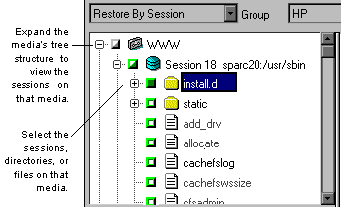
5. Select the Destination tab, then specify the destination (where you want the files to go).
Source files can be restored to the same directory structure that they originated from, or to any other location specified.
6. Click the Submit button to run the job.
ARCserveIT will then display a dialog box listing which media is required for the restore job. Make sure the media is currently loaded in the selected device.