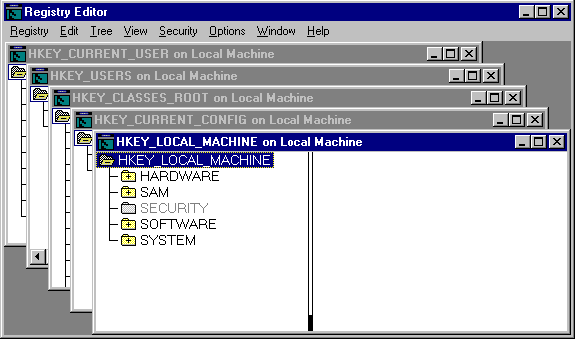
Double-click a key name to expand or collapse an entry. Or click commands from the View and Tree menus to control the display of a selected key and its data.
Registry Editor displays the subtrees of the Registry. The hierarchical structure that appears in Registry Editor is similar to the hierarchical directory structures of Windows NT Explorer.
Your ability to make changes to the registry using Registry Editor depends on your access permissions. Generally, you can make the same kinds of changes using Registry Editor as your permissions allow for other administrative tools.
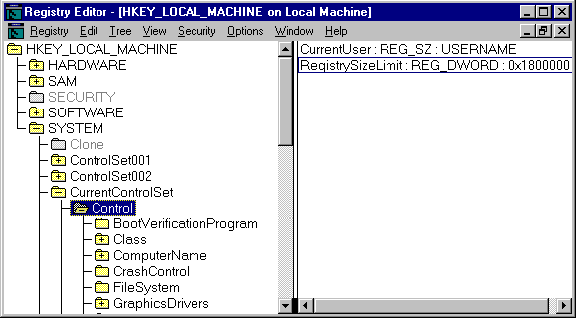
As shown in the following figure, Registry Editor displays data in two panes. The value entries in the right pane are associated with the selected key in the left pane.
You can use the mouse or commands to manipulate the windows and panes in the Registry Editor in the same way as in the Windows NT Explorer. For example:
Double-click a key name to expand or collapse an entry. Or click commands from the View and Tree menus to control the display of a selected key and its data.
Use the mouse or arrow keys to move the vertical split bar in each window to control the size of the left and right panes.
Click Tile or Cascade from the Window menu to arrange the Registry Editor windows.
Click Auto Refresh from the Options menu to update the display continuously. You can also click one of the Refresh commands from the View menu to update the display of registry information when Auto Refresh is turned off.
The following table shows some keyboard methods for managing the display of data in each Registry Editor window.
|
Procedure |
Keyboard action |
|
Expand one level of a selected registry key. |
Press ENTER. |
|
Expand all of the levels of the predefined handle in the active Registry window. |
Press CTRL + *. |
|
Expand a branch of a selected registry key. |
Press the asterisk (*) key on the numeric keypad. |
|
Collapse a branch of a selected registry key. |
Press ENTER or (-)on the numeric keypad. |
You can modify many of the values in the Advanced Server Registry using the AS/U Administrator. Using this tool allows you to modify specific keys in the registry which govern the performance of Advanced Server. Using AS/U Administrator (unlike the Registry Editor) allows you to choose from among lists of allowable values for each key. In this way, you are less likely to accidentally corrupt the data in your registry file.
AS/U Administrator is included in the Administrative Tools Package. This optional package must be installed on a server as described in Chapter 1, "Installing Advanced Server." Then you must install it on a Windows NT Workstation (Versions 3.51 or 4.0.) computer serving as administrative network client, as described in Chapter 3, "Installing Network and Administrative Client Software."
To start AS/U Administrator, click on its icon or execute the Run command in the Windows NT Start menu. In the Select Computer field, enter the name of the Advanced Server whose registry file you wish to configure. Configuration data for the selected computer will be displayed on the AS/U Administrator Version tab. To view or change Advanced Server Registry values, click on the Policy tab.
The following table lists the policies and their associated Advanced Server Registry keys that can be modified using AS/U Administrator.
|
Policy |
Advanced Server Registry Key |
|
Alerter Service |
(SYSTEM\Current\ControlSet\Services\Alerter\Parameters) |
|
IncludeMessageHeader |
|
|
CountNotOnNetworkCache |
|
|
NotOnNetworkCacheTimeout |
|
|
Computer Browser Service |
(SYSTEM\CurrentControlSet\Services\Browser\Parameters) |
|
MasterUpdate |
|
|
BackupUpdate |
|
|
BackupRecovery |
|
|
MoreLog |
|
|
Connected Clients |
(SYSTEM\CurrentControlSet\Services\Netlogon\Parameters) |
|
LogonQuery |
|
|
QueryDelay |
|
|
RelogonDelay |
|
|
(SYSTEM\CurrentControlSet\Services\LanmanServer\Parameters) |
|
|
AutoDisconnect |
|
|
File Name Space Mapping |
(SYSTEM\CurrentControlSet\Services\AdvancedServer\FileServiceParameters) |
|
NameSpaceMapping |
|
|
UniqueSuffixLength |
|
|
MixedCaseSupport |
|
|
TruncatedExtensions |
|
|
MappingSeparator |
|
|
Netlogon Service |
(SYSTEM\CurrentControlSet\Services\Netlogon\Parameters) |
|
Scripts |
|
|
Pulse (PDC only) |
|
|
Update (BDC only) |
|
|
Randomize (BDC only) |
|
|
SSIPasswdAge (BDC only) |
|
|
Server Announcement |
(SYSTEM\CurrentControlSet\Services\LanmanServer\Parameters) |
|
Hidden |
|
|
SrvAnnounce |
|
|
LmAnnounce |
|
|
UNIX Account Mapping |
(SYSTEM\CurrentControlSet\Services\AdvancedServer\FileServiceParameters) |
|
CreateUnixUser |
|
|
UNIX File System Integration |
(SYSTEM\CurrentControlSet\Services\AdvancedServer\FileServiceParameters) |
|
IgnoreUnixPermissions |
|
|
UnixDirectoryCheck |
|
|
UnixFilePerms |
|
|
UnixDirectoryPerms |
|
|
UseUnixLocks |
|
|
RootOwnsFilesCreatedOnNFS |
|
|
UPS Service |
(SYSTEM\CurrentControlSet\Services\UPS\Parameters) |
|
IgnoreSIGPWR |
|
|
PowerFailAddress |
|
|
PowerFailMessage |
|
|
PowerMessageInterval |
|
|
Users Alerts |
(SYSTEM\CurrentControlSet\Services\AdvancedServer\AlertParameters) |
|
AertAdminOnLicenseOverFlow |
|
|
AlertUserOnLicenseOverFlow |
|
|
(SYSTEM\CurrentControlSet\Services\LanmanServer\Parameters) |
|
|
AccessAlert |
|
|
ErrorAlert |
|
|
LogonAlert |
This section describes the Advanced Server Registry keys that are changed during administration. You may want to modify these values directly using the AS/U Administrator or a registry editor. You do not need to be concerned with every key in the Advanced Server Registry; only those keys that you may have reason to change are described.
The Advanced Server Registry keys described in this section are defined in subkeys located in the following path:
HKEY_LOCAL_MACHINE\SYSTEM\CurrentControlSet\Services
\Alerter
\Browser
\EventLog
\LanmanServer
\LanmanWorkstation
\Netlogon
\Netrun
\Replicator
\UPS
\WINS
The server must be stopped and then restarted in order for most changes to the Advanced Server Registry to take effect.
The Advanced Server subkey of the Advanced Server Registry contains the following subkeys:
HKEY_LOCAL_MACHINE\SYSTEM\CurrentControlSet\Services\AdvancedServer
\AlertParameters
\FileServiceParameters
\NetAdminParameters
\Parameters
\ProcessParameters
\RpcParameters
\ShareParameters
\UserServiceParameters
The following sections describe the entries contained within those subkeys.