Account policy controls how passwords are used by user accounts.
Advanced Server, Windows NT Server, and Windows NT Workstation security policy settings can provide different levels of security for user actions on domain controllers and on workstations and member servers. Domain security policy should be established as part of planning your domain.
When administering domains, security policy applies to the primary and backup domain controllers in the domain (they share the same security policy). When administering a computer running Windows NT Workstation or a computer running Windows NT Server as a member server, security policy applies only to that computer.
You can define three security policies:
Account policy controls how passwords are used by user accounts.
Audit policy controls the types of events that are recorded in the security log (which you can view in Event Viewer if you are logged on as a member of the Administrators group).
Trust Relationships policy controls which domains are trusted and which domains are trusting domains. This policy is not used in the single domain model and is not available when administering a computer running Windows NT Workstation or a computer running Windows NT Server as a member server.
A fourth security policy, the User Rights policy, is applied to groups or users and affects the activities allowed on either an individual workstation or member server, or on all domain controllers in a domain.
For information about the User Rights security policy, see Chapter 3, "Working With User and Group Accounts."
For information about trust relationships, see Administering Trust Relationships.
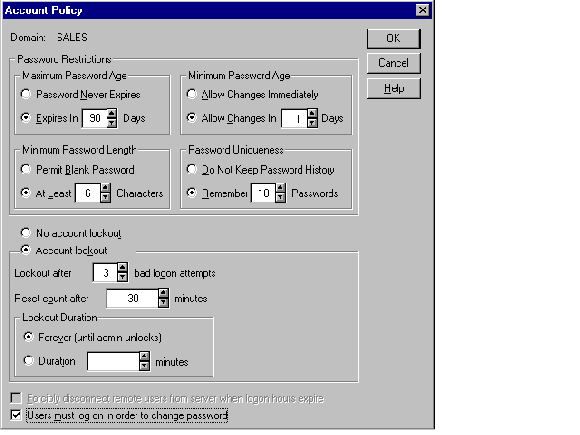
The Account policy controls how passwords must be used by all user accounts for a computer or domain and also determines the account lockout policy.
Password restrictions include password expiration limits, whether a password can be changed and when a change is required, whether each new password must be different from former passwords, and how long a password can be.
The account lockout feature enables you to make Advanced Server more secure from intruders who try to log on by guessing the passwords of existing user accounts. When account lockout is enabled, a user account becomes locked if a number of incorrect logon attempts occur within a specified amount of time. Locked accounts cannot log on. A locked account remains locked until an administrator unlocks it or until a specified amount of time passes. By default, account lockout is disabled.
Note

The account lockout feature is not available in earlier versions of Advanced Server or LAN Manager, Version 2.x.
There are four password parameters that you can define in the Account Policy dialog box.
|
Parameter |
Description |
|
Maximum Password Age |
The period of time a password can be used before the system requires the user to change it. |
|
Minimum Password Age |
The period of time a password must be used before the user is allowed to change it. If you select the Allow Changes Immediately option, then under Password Uniqueness you should select the Do Not Keep Password History option. |
|
Minimum Password Length |
The fewest characters a password can contain. |
|
Password Uniqueness |
The number of new passwords that must be used by a user account before an old password can be reused. If you enter a uniqueness value here (for example, Remember 4 Passwords), then under Minimum Password Age you should specify an age value (for example, Allow Changes In 7 Days). |
If you select Account Lockout, you also should set the following parameters.
|
Parameter |
Meaning |
|
Lockout After |
The number of incorrect logon attempts that will cause the account to be locked. The range is from 1 to 999. |
|
Reset Count After |
The maximum number of minutes that can occur between any two bad logon attempts. The range is from 1 to 99999. For example, if Lockout After is 5 bad logon attempts, and Reset Count After is 30 minutes, then 5 bad logon attempts, each 29 minutes apart, would cause lockout. |
|
Lockout Duration |
Select Forever to cause locked accounts to remain locked until an administrator unlocks them. Select Duration and type a number to cause accounts to remain locked for the specified number of minutes. |
The Forcibly Disconnect Remote Users From Server When Logon Hours Expire option interacts with the logon hours defined for a user account. If the option is selected, a user account that exceeds the time set in the Logon Hours dialog box is disconnected from all connections to any server in the domain. The user receives a warning message a few minutes prior to expiration of the logon hours.
If this option is cleared, the user will not be disconnected when Logon Hours has been reached, but no new connections are allowed and a warning message is sent every five minutes.
When Users Must Log On In Order To Change Password is selected, users cannot change their own passwords when they expire; they must get help from an administrator. When this option is cleared, users can change their own passwords when they expire without help from an administrator.
Changes to account policy affect every user on the computer or domain at the next logon.
For information on how to set account policy, see "Managing the Account Policy" in User Manager for Domains Help.
For information about setting logon hours, see Chapter 3, "Working With User and Group Accounts."
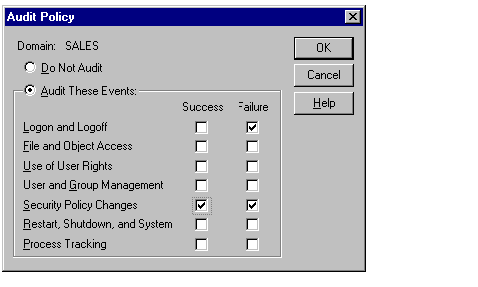
Auditing allows you to track selected activities of users. On a domain controller, the Audit policy determines the amount and type of security logging Advanced Server performs on all of the domain controllers in the domain. On workstations or member servers, the Audit policy determines the amount and type of security logging performed on the individual computer.
Advanced Server can record a range of event types — from system-wide events such as a user logging on, to attempts by a particular user to read specific files. Both successful and unsuccessful attempts to perform an action can be recorded.
Use the Audit policy to select the types of security events that will be audited. When an audited event occurs, an entry is added to the computer’s security log. Use Event Viewer to view the security log.
Setting up auditing on files, directories, and printers is a two-part process. After you enable auditing for the domain and select the events to audit, you then can apply audit security to specific files, directories, and printers using the Security tab on the respective object’s property sheet.
For information about using auditing as a resource security measure, see Chapter 5 "Managing Shared Resources and Resource Security."
When administering domains, the Audit policy applies to the security log of the primary and backup domain controllers in the domain because they share the same Audit policy.
When administering a computer running Windows NT Workstation or a computer running Windows NT Server as a member server, the Audit policy applies only to the security log of that computer.
The following table describes the types of events that can be audited.
|
Type of event |
Description |
|
Logon and Logoff |
A user logged on or off or made a network connection. |
|
File and Object Access |
A user opened a directory or a file that is set for auditing in File Manager, or a user sent a print job to a printer that is set for auditing in Print Manager. |
|
Use of User Rights |
A user used a user right (except those rights related to logon and logoff). |
|
User and Group Management |
A user or group account was created, changed, or deleted. A user account was renamed, disabled, or enabled; or a password was set or changed. |
|
Security Policy Changes |
A change was made to the User Rights, Audit, or Trust Relationships policies. |
|
Restart*, Shutdown*, and System |
A user restarted or shut down the computer, or an event has occurred that affects system security or the security log. |
|
Process Tracking* |
These events provided detailed tracking information for things like program activation, some forms of handle duplication, indirect object accesses, and process exit. |
|
* Applies only to Windows NT. | |
Because the security log size is limited, select the events to be audited carefully and consider the amount of disk space you are willing to devote to the security log. The maximum size of the security log is defined in Event Viewer.
For more information, see "Managing the Audit Policy" in User Manager for Domains Help; "Viewing Event Logs," "Searching for Events," and "Viewing Event Details" in Event Viewer Help; and "To add a user or group to a permissions list" and "To add a user or group to an auditing list" in Windows NT Help.
For information about the security log and using Event Viewer, see Chapter 7, "Monitoring Events."