The only way to make a file accessible over the network is to share one of its parent directories.
When you share a directory on the server, users theoretically can gain access to that directory, the files in it, all of the subdirectories in that directory and their contents, and all of the subdirectories in those subdirectories and their contents. Every point on the directory tree below the shared directory is available to network users.
You can use directory permissions to block access to some directories in a shared directory tree and allow access to others by setting permissions on them. A shared directory often is referred to simply as a share.
When you share a directory, you give it a share name by which network users refer to it. (A share name can be the same as the actual directory name but it does not have to be.)
Note
Windows NT Server, Windows NT Workstation, and Windows 95 users can see share names by double-clicking on the names of computers in the network in Network Neighborhood. MS-DOS users can use the net view command to see share names. Windows for Workgroups users see share names in File Manager when they connect to a network drive.
You can share multiple directories on a directory tree. This makes them accessible to users in two ways: as a directory that actually is shared and as a subdirectory of another shared directory.
There are several ways to connect to shared directories. In Windows NT Server and Windows NT Workstation, Version 4.0, and Windows 95, you can use the Find command on the Start menu to connect to any computer or shared directory on the network, or double-click on a computer in Network Neighborhood.
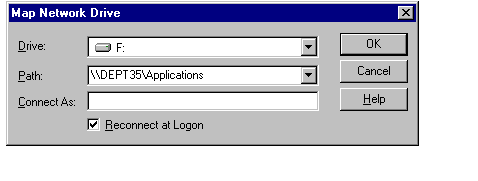
To assign a drive letter in My Computer for a particular share, use the Map Network Drive command on the Tools menu in the Explorer. Type the server name and share name into the Path box using the form \\servername\sharename. For Drive you can use the next available letter or select a letter from the drop-down list.
For example, to connect to the shared directory Applications on the server named Dept35, type the location in the Path box as shown below:
In the Explorer and My Computer, the mapped drive appears in the window as
Applications on ‘Dept35’ (F:)
The share appears as a drive on your computer and the content of the shared directory can be viewed as if it was on your computer. You can have the connection re-established every time you log on or clear the Reconnect at Logon check box to disconnect automatically when you log off.
If you want to connect to a shared directory using a different user account, use the Connect As box to type the user name for that account. If the account is in a different domain, type the domain name followed by a back slash and then the user name; for example, projects\patc.
Users of Windows NT, Version 3.5x, Windows, and Windows for Workgroups can use File Manager to make network connections.
After a Windows user makes a connection to a directory, the drive letter assigned to that directory and an icon appear in the drive bar of File Manager.
For client computers running MS-DOS or OS/2 with LAN Manager client software (but without Windows), use the net use command to make network connections as follows:
net use f: \\dept35\applications
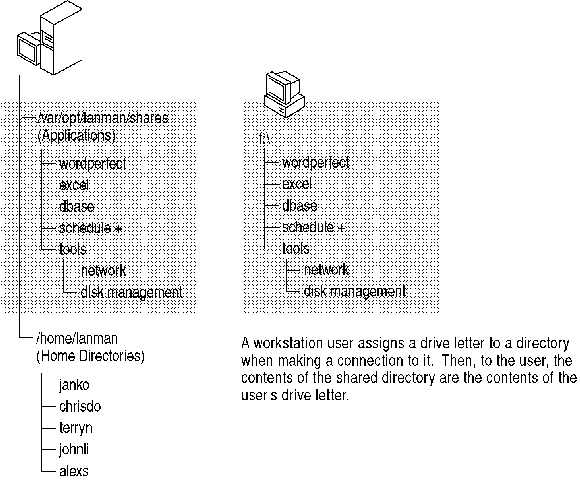
In the following diagram, the server on the left represents Dept32, and Applications is the share name.
The following naming conventions apply to client computers running MS-DOS:
 If a share will be accessed by users of MS-DOS (including users of Windows for Workgroups), follow the MS-DOS 8.3 naming convention for the share name. (The name can have up to eight characters, optionally followed by a period and up to three more characters.) MS-DOS computer users will be unable to access shares with share names that do not follow this convention.
On UNIX system files and directories, you can have names of up to 255 characters. And to ensure access by MS-DOS users, Advanced Server provides name mapping: each file or directory with a name that does not conform to the MS-DOS 8.3 standard automatically is given a second name that does conform.
MS-DOS users connecting to the file or directory over the network see the name in the 8.3 format; Windows NT Workstation and Windows NT Server users see the long name. However, Advanced Server does not generate short names for share names that do not conform to MS-DOS naming standards, only for files and directories with long names. When naming a share, use the 8.3 standard.
Advanced Server name mapping also allows applications that do not support long file names to access files with such names. These applications refer to files that have long names by their shorter names.
For more information about Advanced Server file name space mapping, see the next section.
Note
If an application that does not support long file names opens a file with a long name and then saves the file, the long name is lost and only the short name remains.
Advanced Server file name space mapping lets client computers running MS-DOS or Window for Workgroups to access files with long file names created by Windows 95, Windows NT, and OS/2 clients.
File name space mapping allows different types of clients to access files residing in a UNIX file system managed by Advanced Server.
The file name space mapping feature is composed of the following three elements:
Mixed-case support
Mapping UNIX system file names to the 8.3 convention
Mapping UNIX system file names containing characters that are unacceptable in Windows NT to names that are acceptable to Windows NT.
The challenge of mapping between name spaces is resolved on UNIX systems by concatenating a truncated file name with a pseudo-unique suffix, which is generated dynamically from the i-node number of the UNIX system file.
The following table lists the client computer software that uses only the 8.3 file naming convention:
|
8.3 File Naming Convention Client Computers |
|
MS-DOS |
|
Windows 3.1 (without "longfilenames=1" in WINFILE.INI) |
|
Windows for Workgroups |
|
OS/2 DOS Window |
|
OS/2 WIN-OS/2 |
The following table lists the client computer software that uses the Windows NT-style naming convention:
|
Windows NT-Style File Naming Client Computers |
|
Windows NT |
|
Windows 3.1 (with "longfilenames=1" in WINFILE.INI) |
|
Windows 95 |
|
OS/2 |
The following table lists the configuration keys that are used for file name space mapping in the Advanced Server Registry:
|
Key |
Possible Values |
Default Value |
|
MixedCaseSupport |
0 (disabled), 1 |
0 |
|
NameSpaceMapping |
0 (none), 1 (DOS), 2 (NT), 3 (all) |
3 |
|
UniqueSuffixLength |
0 -7 |
3 |
|
TruncatedExtensions |
0 (disabled), 1 |
1 |
|
MappingSeparator |
Any string value less than 12 characters that uses valid Windows NT characters. |
~ |
The registry path for these settings is as follows:
\SYSTEM\CurrentControlSet\Services\AdvancedServer\FileServiceParameters
The MixedCaseSupport key specifies whether mixed-case support is enabled on the server. Mixed-case support allows clients to access file names on the UNIX system that contain uppercase characters. Enabling mixed-case file names may affect the server’s performance negatively. Mixed-case support is disabled by default.
The NameSpaceMapping key specifies the type of the mapping enabled on the server, as follows:
For more information about the Advanced Server Registry, see Advanced Server Administration.
For UNIX system file name-to-8.3 type name mapping, the following rules apply:
Spaces are removed from the name.
Periods are removed, except for the last one followed by at least one character.
Invalid characters are replaced by underscores (_).
The name, not including extension, is truncated; a tilde (~) and a combination of numbers (0 - 9) and letters (A - Z) is appended.
The extension is truncated to 3 characters.
For example, the file name longfilename.txt and i-node number of 11455, would have a mapped name of long~8u7.txt.
For UNIX system file name-to-Windows NT-style name file name mapping, the following rules apply:
Invalid characters are replaced by underscores (_).
A mapping separator (a tilde by default) and a combination of numbers (0 - 9) and letters (A - Z) are appended to the name, not including the extension.
The extension is preserved.
For example, the file name k<l<m.expression and i-node number of 8461 would have a mapped name of k_l_m~6j1.expression.
A decision on whether your server should support mixed-case file names should be considered carefully. Mixed-case support allows clients to have access to file names on UNIX systems that contain uppercase characters but this feature has a negative impact on server performance.
It is inadvisable to switch frequently between mixed-case support on the same server. While mixed-case support is enabled, clients can create files with mixed-case names. These files will become unavailable to them as soon as mixed-case support is disabled. If mixed-case support is changed from "on" to "off," every existing file name should be made lowercase.
Do not create file names that are case-insensitively identical in the same directory. Although the UNIX system is case-sensitive, mixed-case support on Advanced Server causes the server to preserve case but behave in a case-insensitive way, just like Windows NT. Microsoft product users are not aware of the possibility of having case-insensitive similar file names in a directory because Windows NT does not allow such files. As a result, users may become confused if they access incorrect files or are denied access to files they need.
Do not use characters that are invalid in MS-DOS in the names of batch files or DOS executables. If one of those files is executed from a Windows NT or Windows 95 client, Command Shell will be invoked and it will interpret those file names incorrectly. This may result in actual file names not being found.
Setting "longfilenames=1" in WINFILE.INI on Windows 3.1 client computers should be done with great caution. Clients with this setting enabled are not able to view files on Windows NT (Versions 3.51 and 4.0) computers. Although these clients can access Advanced Server files, support for this feature on the client side is unreliable.