The user is the owner of the directory and has full access to the directory.
Sharing a directory makes the directory and the files located in it available to other network users. Advanced Server integrates two levels of permissions for shared files and directories: share permissions and directory access permissions.
Share permissions specify the maximum access possible for a user or group on all files and directories residing on that share. For example, setting share permissions to Read for Everyone would prevent any user from altering the contents. Share permissions are set using Server Manager.
Directory access permissions specify the access that a group or user is granted to a particular directory or file. Directory access permissions are set through the Security menu of the File Manager or the Properties menu of the Explorer. Generally it is more useful to control access by setting permissions on files and directories rather than on shares because this method provides more flexibility.
In addition to the two levels of permissions supported by Advanced Server, the UNIX file system imposes a set of permissions that must be considered when managing shared directories. Shared directories must have the appropriate UNIX system permissions applied to them in order to grant access to Advanced Server users.
Advanced Server automatically creates special shares for administrative and system use. (The shared directory created for the root system is called C$.) Only members of the Administrators group can change properties for them. Removing these shares is inadvisable.
To share a directory in Advanced Server, you must be logged on as a member of the Administrators or Server Operators group.
If the directory to be shared does not exist, it will be created automatically when you attempt to share it — if you have Advanced Server permissions. If you do not have permissions to create this directory, you must following the procedure in the next section, "Sharing a Directory in the UNIX System."
If a directory to be shared does not exist and is not created automatically when you attempt to share it, you must create it in the UNIX system as root and set appropriate UNIX system ownership and permissions before it can be shared in Advanced Server.
For directories that will be owned by an Advanced Server user who has been mapped explicitly to a UNIX system account, the following procedure is recommended. The example shares the home directory of an Advanced Server user (JohnPublic) who is mapped to a UNIX system account (jqp) and is a member of the UNIX system group sales.
To create a directory in the UNIX system, use the mkdir command. Then use the chown, chgrp, and chmod commands to set the ownership and permissions, as described in the following procedure and example.
To create a directory in the UNIX system
1. Map the Advanced Server user to that user’s UNIX system account name with the mapuname command. At the Advanced Server command prompt, type
mapuname -a domainname:JohnPublic jqp
2. Create the UNIX system directory to be shared.
mkdir /home/jqp
3. Set the owner of the directory to be the user’s UNIX system ID using the chown command.
chown jqp /home/jqp
4. Set the UNIX system group of the directory to be the UNIX system group ID of the user’s UNIX system account using the chgrp command.
chgrp sales /home/jqp
Group DOS---- can be used if all Advanced Server users should have access to the directory. You may want to restrict this to the user’s UNIX system group in order to restrict access to only members of that group.
5. Set the UNIX system permissions of the directory to 750 (rwx for owner, r-x for group, no access for others) using the chmod command.
chmod 750 /home/jqp
The results of sharing the home directory of an Advanced Server user who is mapped to a UNIX system account are as follows:
The user is the owner of the directory and has full access to the directory.
Members of the user’s UNIX system group have read and execute access to the directory.
All other UNIX system users, including Advanced Server users who are not in the designated UNIX system group, have no access to the directory.
Different UNIX system permissions can be set as appropriate. Access through Advanced Server can be restricted further by setting Advanced Server permissions using File Manager or Explorer.
To share directories not owned by a single Advanced Server user or if an Advanced Server user is not mapped explicitly to a UNIX system user account, use the following procedure:
(The example prepares the /var/opt/lanman/shares/sales UNIX system directory to be shared with Advanced Server users.)
To prepare a directory to be shared by Advanced Server
1. Create the UNIX system directory to be shared if it does not already exist.
2. Set the owner of the directory to lmworld using the chown command.
chown lmworld /var/opt/lanman/shares/sales
lmworld is a UNIX system user account created by the Advanced Server for files and directories owned by Advanced Server users who have not been mapped explicitly to another UNIX system account.
3. Set the group of the directory to be DOS---- using the chgrp command.
chgrp DOS---- /var/opt/lanman/shares/sales
DOS---- is a UNIX system group created by Advanced Server for file and directory sharing. All Advanced Server users automatically are made members of this group.
4. Set the permissions of the directory to be 770 using the chmod command.
chmod 770 /var/opt/lanman/shares/sales
The results of preparing a UNIX system directory to be shared by Advanced Server are as follows:
Full Control is granted to the special group Everyone; all Advanced Server users are members of the special group Everyone.
UNIX system users who are not members of the DOS---- group will have no access to the directory.
Different UNIX system permissions can be set as appropriate. Access through Advanced Server can be restricted further by setting Advanced Server permissions through Server Manager, File Manager, or Explorer.
The directory now is ready to be shared as an Advanced Server directory using Server Manager or the net share command. You can use Server Manager to view a computer’s shares, add new shares, and stop sharing directories. Server Manager also allows you to monitor and control the use of shared files.
For information about sharing directories using Server Manager, see "Sharing a Directory," "Viewing Shared Resources," and "Stopping Directory Sharing" in Server Manager Help.
For information about sharing directories using the net share command, type net help share at the Advanced Server command prompt.
Advanced Server automatically creates special shares for administrative and system use. Depending on the configuration of the computer being administered, some or all of the following special shares may appear in this list. You should not remove or modify these special shares.
|
Share name |
Represents |
|
ADMIN$ |
A special administrative resource for remote administration. All share names that end in a dollar sign ($) are hidden; they do not appear when a user uses the net view command, File Manager, or Explorer to examine server resources. |
|
C$ |
A connection to the root of the file system. (On Advanced Server for UNIX Systems, C$ is equivalent to root ( / ). |
|
D$ |
Contains files and libraries required by MS-DOS, OS/2, and Windows NT computers. |
|
DOSUTIL |
Contains MS-DOS programs and utilities for using and administering the LAN. |
|
IPC$ |
Supports interprocess communication. |
|
LIB |
Contains header files and link-time libraries needed to create Advanced Server applications. |
|
NETLOGON |
Advanced Server shares the directory specified by scripts with the share name NETLOGON. |
|
OS2UTIL |
Contains OS/2 programs and utilities for using and administering the LAN. |
|
PRINTLOG |
Accumulates printer fault or error messages generated by the UNIX system. |
|
USERS |
Contains user home directories. |
For information about viewing shared resources, see "Viewing Shared Resources" in Server Manager Help.
To change properties on a share, you must be logged on as a member of the Administrators or Server Operators group. Members of the Administrators group can change share properties on administrative shares as well (for example, C$).
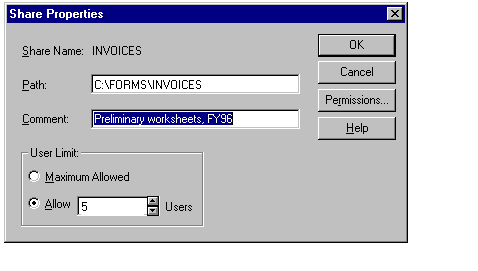
In Server Manager you can select a shared directory and make changes to its properties. Use the Share Properties dialog box to change the directory path, add a comment, or change the number of users allowed to connect to the share at one time. Click on Permissions to see the users and groups who have permission to use the share and to change permissions.
Tip

Use directory and file permissions to control security over the network and to allow Full Control access to Everyone on the share.
For information about how to manage share permissions, see "To set, view, change, or remove permissions through a shared directory" in Windows NT Help.
When you stop sharing a directory, it no longer is available over the network. To stop sharing a directory, you must be logged on as a member of the Administrators or Server Operators group.
The Shared Directory dialog box displays shared directories you created, as well as shared directories created by the system. Generally, you should not stop sharing directories created by the system. Use Server Manager to stop sharing a directory.
Caution
If you stop sharing a directory while users are connected, users may lose data.
Advanced Server printers can be shared by users who are:
Logged on a domain controller as members of the Administrators, Server Operators, or Print Operators local groups.
Logged on a domain account as members of domain Administrators local group.
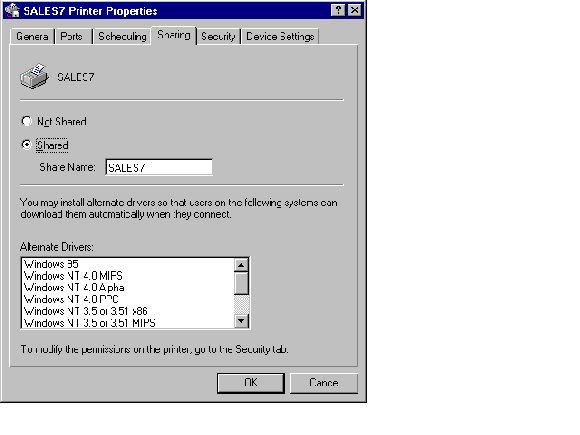
After a printer has been added, it can be shared using the Sharing tab in the Printer Properties dialog box. Click on Printers in the Settings group on the Start menu to add printers, share printers, install printer drivers, configure printer ports, set printer properties, and set permissions.
For information about setting up and sharing printers, and about printer permissions, see Chapter 6, "Setting Up Print Servers."
For information about managing printer sharing, see "To set up a new printer," "To share your printer with other people," "To use a shared network printer," and "To stop sharing your printer" in Windows NT Help.
Computers running different operating systems that interact with other networks or with workgroups can share files and printers with Advanced Server network computers.
Domain computers running Windows for Workgroups can use and share directories and printers on an Advanced Server network.
LAN Manager, Version 2.x, servers and clients can use and share directories and printers on an Advanced Server network.
Windows 95 computers running Client for Microsoft Networks and File and Printer Sharing for Microsoft Networks can use and share directories and printers on an Advanced Server network.
For information about integrating other computers with Advanced Server, see Chapter 2, "Managing Advanced Server Domains."
This section discusses the following topics:
You can control the access that users have to files, directories, and shares on Advanced Server computers.
Directories and files can be secured by setting permissions on them. Every permission that you set specifies the access that a group or user can have to the directory or file. For example, when you set Read permission for the group called Coworkers on the file MY_IDEAS.DOC, the users in that group can display the file’s data and attributes, but they cannot change the file or delete it.
Advanced Server offers a set of standard permissions that you can set on directories and files. The standard permissions for directories are No Access, List, Read, Add, Add & Read, Change, and Full Control. The standard permissions for files are No Access, Read, Change, and Full Control.
Standard permissions are groups of individual permissions. When you set a standard permission, the abbreviations for the individual permissions are displayed beside the standard permission. For example, when you set the standard permission Read on a file, the abbreviation RX appears beside it.
Individual permissions and their abbreviations are as follows:
|
Read (R) |
Write (W) |
Execute (X) |
|
Delete (D) |
Change Permissions (P) |
Take Ownership (O) |
In addition to setting standard permissions, you can set special access permissions which allow you to define custom sets of individual permissions.
To work effectively with Advanced Server security, keep the following points about setting permissions in mind:
Users cannot use a directory or file unless they have been granted permission to do so or belong to a group that has permission to do so.
Permissions are cumulative except that the No Access permission overrides all other permissions. For example, if the Coworkers group has Write permission for a file while the Finance group has only Read permission and John is a member of both groups, John will be granted Read & Write permissions. However, if you change the Finance group’s permission for the file to No Access, John will not be able to use the file even though he is a member of a group that has access to it.
When you create files and subdirectories in a directory, they inherit permissions from the directory. For example, if you add a file to a directory that allows the coworkers group Write permission and a finance group Read permission, the same permissions will apply to the file.
The user who creates a file or directory is the owner of that file or directory. The owner can control access to the file or directory by changing the permissions set on it. Users who are members of the Administrators group always can take ownership of a file or directory.
The easiest way to administer security is by setting permissions for groups, not individual users. Typically, a user needs access to many files. If the user is a member of a group that has access to the files, you can terminate the user’s access by removing the user from the group rather than changing the permissions on each of the files. Note that setting permission for an individual user does not override the access granted to the user through groups to which the user belongs.
For more information about permissions, see Chapter 3, "Working With User and Group Accounts."
Important
When you copy files or directories, security permissions set on them are discarded in addition to ownership and auditing information. The files inherit a new set of permissions from the directory into which they have been copied. If the new directory does not specify permissions for files, only a file’s owner (the person who copied the file) will have permission to use the file.