Local groups, global groups, and individual users in the domain containing the server.
When you set permissions on directories and files in Advanced Server, you control directory and file access in the following ways:
Local groups, global groups, and individual users in the domain containing the server.
Global groups and individual users in domains that this domain trusts.
The special identities Everyone, System, Network, Interactive, and Creator Owner.
You can grant permissions to the built-in local groups (such as Administrators and Domain Users) and to any groups you create in the domain.
When a new subdirectory or file is created in an Advanced Server volume, you can set its permissions. If you do not set permissions, the new subdirectory or file inherits the permissions of the directory that contains it.
In the event that you inadvertently alter any of the default Advanced Server permissions, you can overwrite the default permissions into an existing Access Control List database by running the acladm command as root. For more information about this command, type man acladm at the Advanced Server command prompt.
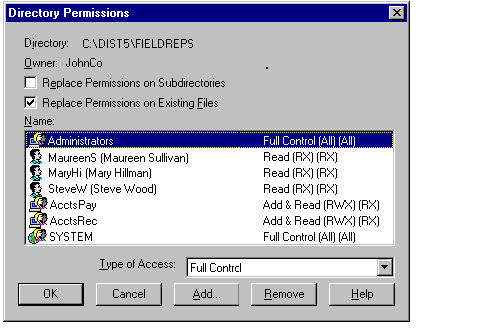
When you first display a directory’s permissions, the Directory Permissions dialog box shows the permissions that the directory inherited from the directory containing it. The Name box shows the groups and users for whom permissions have been set.
Note

To change permissions on the directory, you must be the owner of the directory or have been granted permission to do so by the owner.
If you have selected multiple directories, permissions are shown only if they are the same for all of the directories. You can change permissions, add a group or user to the list, or remove a group or user from the list.
Setting permissions on a directory controls what users can do in that directory. When you set directory permissions, you are setting permissions on the directory and by default on all of the files that exist in the directory. Existing subdirectories and their files are not changed unless you specify to change them. When you create new files and new subdirectories, they inherit their permissions from the directory.
In some cases, directory permissions for a group or user are not passed on to subdirectories. This occurs, for example, when a group or user has been granted permissions through the CREATOR OWNER special group. Permissions that will not be inherited by subdirectories are marked with an asterisk, for example (All)*.
When you set a standard permission, two sets of individual permissions are displayed next to it: the permissions set on the directory and the permissions set on files in the directory. For example, when you set Add & Read permission on a directory, you see (RWX), signifying Read, Write, and Execute permissions on the directory, and (RX), signifying Read and Execute permission on its files.
Permissions on files in a directory can be set to Not Specified. This means that by default no permissions will be set for that user or group to the files that are present in the directory or that are created after setting this permission. A group or user cannot use files in the directory unless access is granted by another method such as setting permissions that grant access on individual files.
When you are setting permissions on a directory, you can use the CREATOR OWNER special group to allow users to control only the subdirectories and files that they create within the directory. Permissions set on CREATOR OWNER are transferred to the user who creates a directory or file within the directory. To change permissions on the directory, you must be the owner of the directory or have been granted permission to do so by the owner.
Note
Groups or users granted Full Control permission on a directory can delete files in that directory regardless of which permissions protect the files.
You also can set permissions on directories by using the net perms command. For more information, type net help perms at the Advanced Server command prompt.
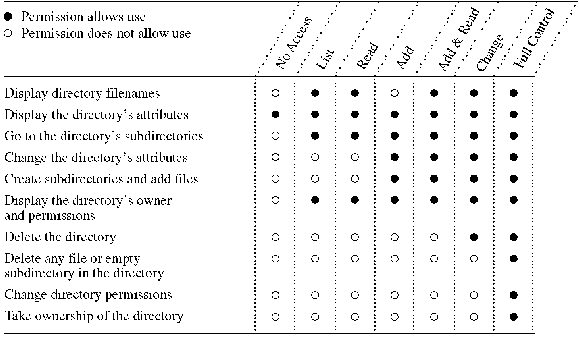
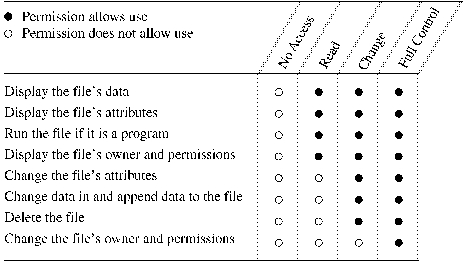
The following table shows permissions for directories and the actions on directories available to users for each permission.
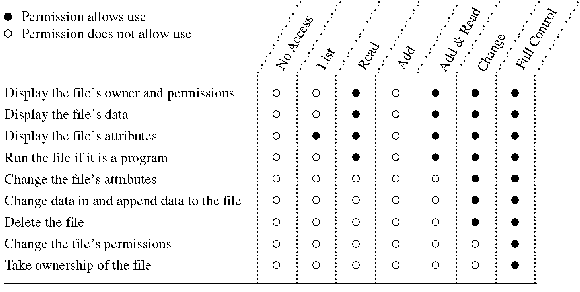
The following table shows permissions for directories and the actions on files available to users for each permission.
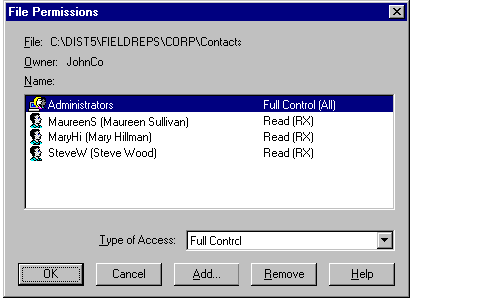
When you first display a file’s permissions, the File Permissions dialog box shows the permissions that the file inherited from the directory containing it. The Name box shows the groups and users for whom permissions have been set on the file. If you have selected multiple files, permissions are shown only if they are the same for all of the files.
Note
To change permissions on the file, you must be the owner of the file or have been granted permission to do so by the owner.
The following table shows permissions for files and the actions available to users for each permission.
You also can set permissions on files using the net perms command. For more information, type net help perms at the Advanced Server command prompt.
Observe the following guidelines when setting file permissions:
Grant permissions to groups, not individual users.
Create local groups and assign permissions to them rather than assigning permissions directly to global groups.
When you create and share a file or directory on a server, grant Full Control to the Administrators local group. This ensures that all administrators of that domain can change permissions for and otherwise administer the file or directory in the future.
For more information about strategies focusing groups and users, see Chapter 3, "Working With User and Group Accounts."
Suppose you need to set file permissions on a server used by a small department. The file server includes an applications directory, home directories for each of the department’s users, a public directory where users can share files, and a drop directory where users can file confidential reports that only the group manager can read.
In the applications directory, make all executable programs read-only to all users, to prevent viruses. You also can grant individual Change Permissions (P) permission to members of the Administrators group so that administrators can give themselves Write permission when it is time to update an application. Giving members of the Administrators group Write permission initially provides less virus protection than giving them Change permission and forcing them to change permissions before updating the application.
If none of your applications need to write any files (such as initialization setting files) in their own directories, you should make all the directories containing applications read-only.
For home directories, give each user Full Control over his or her own directory and do not give anyone permissions for any other directory.
For the public directory, give all users Change permission which lets them read and write to the directory. Change is more appropriate than Full Control because Full Control allows users to set permissions for the public directory and to take ownership of it.
To create a drop directory, grant Users or Everyone Add permission for the directory, and give Change permission to the manager who is to read the files in the directory.
Give access to system files or directories only to members of the Administrators or Server Operators groups.
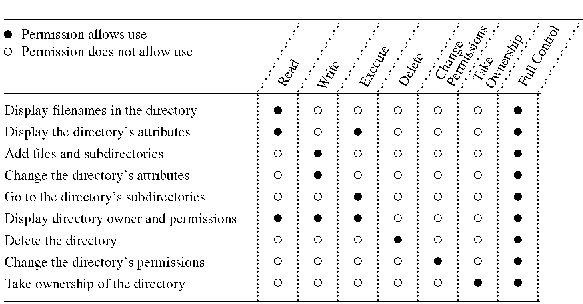
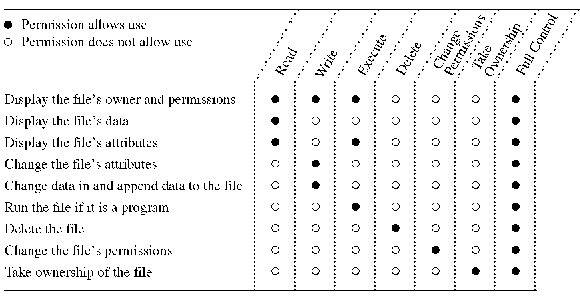
Generally, the standard directory and file permissions are all you need to secure directories and files. However, you can create a custom set of permissions by using special access permissions. A special access permission is a combination of individual permissions that you can set on directories and files. When you set special access permissions on a directory, the permissions affect only the directory.
The following table shows special access permissions for directories and the actions available to users for each directory permission.
The following table shows individual access permissions for files and the actions available to users for each permission.
For information about setting special access permissions, see "To set special access permissions" in Windows NT Help.
You also can set special access permissions using the net perms command. For more information, type net help perms at the Advanced Server command prompt.