Advanced Server, Windows NT Server, and Windows NT Workstation computers can be set up as import computers. A computer running Advanced Server or Windows NT Server that is configured as an export server also can be configured as an import computer.
Before you set up an import computer, you must assign a logon account to the Directory Replicator service of the import computer.
You must specify the full path of the directory to which the subdirectories will be imported. The default path is /var/opt/lanman/shares/asu/repl/import.
On the import computer, you do not need to create imported subdirectories. Imported subdirectories are created automatically the first time they are imported.
Use the Directory Replication dialog box to set up an import computer. The Windows NT Server version of the Directory Replication dialog box is slightly different from the Windows NT Workstation version. The Windows NT Workstation version contains only the items relating to imported directories.
Tip
You can set up a server to replicate a directory tree to itself (from its export directory to its import directory). This replication can provide a local backup of the files, or you can use the import version of these files as another source for users to access, while preserving the export version of the files as a source master.
For more information about setting up import computers, see "Managing Import Replication" in Server Manager Help.
You can use locks to prevent imports to subdirectories on an import computer. Locking a subdirectory on an import computer prevents the replication of subdirectories to that computer until the lock is removed. Locking a subdirectory on an import computer affects replication to only that computer, not to other import computers.
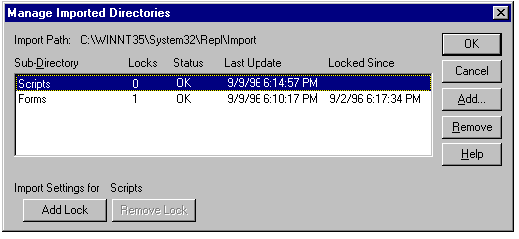
You can manage locks on subdirectories and also view the status of each subdirectory by clicking on Manage under Import Directories in the Directory Replication dialog box.
The Status column can have one of the following four entries:
 OK indicates that the subdirectory is receiving regular updates from an export server and that the imported data is identical to the data that is being exported.
No Master indicates that the subdirectory has received updates in the past but is not receiving updates currently. The export server might not be running or a lock may be in effect on the export server.
No Sync indicates that although the subdirectory has received updates, the data is not up-to-date. This could be a result of a communications failure, open files on the import computer or export server, the import computer not having access permissions at the export server, or an export server malfunction. It also could be the result of a large subdirectory in progress.
No entry (blank) indicates that replication never occurred for that subdirectory. Replication may not be configured correctly for this import computer, for the export server, or both.
The Last Update column shows the date and time of the latest change to the import subdirectory or to any of its subdirectories.
For more information on managing locks, see "To view a list of, or manage locks for, import subdirectories" in Server Manager Help.