
In Server Manager, you can view information about a computer by right-clicking on the computer and selecting Properties. In the Computer Properties dialog box, you can click on buttons to view users, shares, current remote connections, replication import and export servers, and to send administrative alerts.
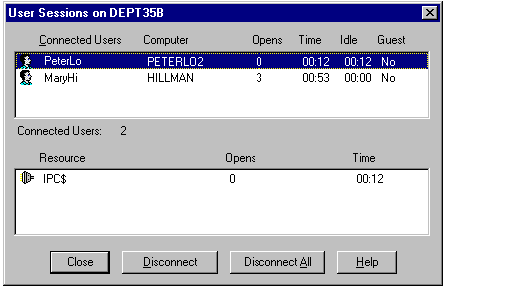
Click on the Users button in the Computer Properties dialog box to view all users connected (over the network) to the computer and the resources opened by a selected user. To display the User Sessions dialog box, double-click on a computer name in the Server Manager window and then click on Users.
In the User Sessions dialog box, you can disconnect individual or multiple users.
Caution
To prevent data loss, always warn users before disconnecting them. See Sending a Message to Users.
Note
While you are administering another computer remotely, your user account is listed as a user connected to the IPC$ resource. It cannot be disconnected.
For more information about viewing user sessions, see "Managing Server Properties" and "Viewing User Sessions" in Server Manager Help.


