RealServer can create reports of historical data that let you see trends and gather information. Track who visited your site and for how long; what clips they watched and whether they watched them all the way through to completion. This information is stored in the access log. Any error messages are recorded in the error log. Requests for streams which will be cached are stored in the cached requests log.
The RealServer access log records the IP addresses of the clients that have connected, the clips they listened to, the times of day they connected, and much more. This information can give you an idea of who your audience is and which clips are most popular. New information is always appended to the end of the access log.
To read the contents of the access log, you must first look up the values of Logging Style and Stats Mask, as these determine how much information is present in the access log. Use RealSystem Administrator to find out the values for these variables. At installation, Logging Style is set to 3 and Stats Mask is 0.
Logging Style provides information about RealServer clip-serving activity. Client information is provided by Stats Mask. However, clients have the ability to prevent some statistics (Stat1, Stat2, and Stat3) from appearing in the access log. If this option is selected in the client, UNKNOWN appears in place of that statistics field.
 |
Additional Information |
|---|
| Read about customizing RealServer settings in "Customizing RealServer Features". |
Once you know the values of these two variables, view the access log by opening rmaccess.log (Windows) or rmaccess (UNIX) file in a word processor or text editor.
 |
Note |
|---|
| Information on which authenticated files have been accessed is stored in reglog.txt and accesslog.txt. See "Logs Directory". |
RealServer stores information about each clip it serves in a separate record. Each record is delimited by a new line. Fields within each record are separated by spaces.
One record is created for every clip served; if the client requests a presentation that includes several clips, one record is created for each clip in the presentation.
The fields that appear within each record depend on the settings for Logging Style and Stats Mask (these are noted in the "Access Log Format" table below). The complete syntax of each record, assuming Logging Style and Stats Mask are gathering all possible information (Logging Style is 5 and Stats Mask is 7) is shown:
client_IP_address - - [timestamp] "GET filename protocol/version" HTTP_error_code bytes_sent [client_info] [client_id] [Stat1:][Stat2:][Stat3:] file_size file_time sent_time resends failed_resends stream_components start_time server_address average_bitrate packets_sent presentation_id
The optional [Stat1:], [Stat2:], and [Stat3:] fields, which are the result of the StatsMask variable, are described in greater detail in separate tables.
|
|
Note |
|---|
| Although in the rest of this manual, square brackets indicate optional material, the square brackets shown in the access log actually appear within access log records. |
The following table lists the format for each access log record:
| Access Log Field | Description | |
|---|---|---|
client_IP_address |
IP address of client, such as 123.45.123.45 |
|
- - |
Two hyphens for compatibility with standard Web server log formats. | |
timestamp |
Time that client accessed the file in the format:dd/Mmm/yyyy:hh:mm:ss TZwhere TZ is the time zone expressed as the number of hours relative to the Coordinated Universal Time (Greenwich, England) and is relative to the server. For example:[31/Oct/1996:13:44:32 -0800] |
|
"GET filename |
File name (and path) requested by the client. Path is relative to BasePath in local file system. If the client requests a file that doesn't exist, UNKNOWN appears in place of a file name. |
|
protocol/version" |
Application-layer protocol used to send the clip to the client. Possible values are:RTSPIn addition, a letter at the end of the string indicates which transport type was used: |
|
(blank) |
UDP connection | |
| T | TCP connection | |
H |
HTTP connection | |
M |
Multicast | |
For example, PNAT means that the clip was sent using the PNA protocol over a TCP connection. The version number indicates the edition of the protocol. |
||
HTTP_status_code |
Return code using HTTP standard error codes. Usually returns 200. |
|
bytes_sent |
Number of bytes transferred to the client. | |
[client_info] |
Describes the version and type of client being used. Client information appears in the following format, [platform version client type dist_code language CPU] |
|
| Field | Description | |
platform |
Operating system RealPlayer runs on-Win16, WinNT, Mac, and so on. | |
version |
Operating system version number. | |
client |
Version number of RealPlayer. | |
type |
Type of RealPlayer. | |
dist_code |
Distribution code of RealPlayer. | |
language |
Language setting in RealPlayer. | |
CPU |
Type of processor on which the client is running. If the processor does not have a hardware Floating Point Unit, the string "no-FPU" is appended to the end of the CPU field with no delimiter. For example:Win95_4.0_3.0.0.19_play32_PN01_EN_586 |
|
RealAudio Player version 1.0 shows only two fields for [client_info]. They are platform and client. |
||
client_id |
Unique ID generated during RealPlayer installation that enables you to track details for individual clients. Included when Logging Style is set to 2 or higher. |
|
[Stat1] (see the "Statistics Type 1 Information" table below) |
Connection statistics sent by the client when it completes playing a clip. When the client blocks connection statistics, or when the RealServer is a splitter, the field is replaced by [UNKNOWN]. Note that there is no space between the closing square bracket of this statistics type and the opening square bracket of the next statistics type. Included when Stats Mask is 1, 3, 5, or 7. |
|
[Stat2] (see the "Statistics Type 2 Information" table below) |
Extended connection statistics sent by the client when it completes playing a clip. When the client blocks connection statistics, or when the client is a splitter, the field is replaced by [UNKNOWN]. Note that there is no space between the closing square bracket of this statistics type and the opening square bracket of the next statistics type.Included when Stats Mask is 2, 3, 6, or 7. |
|
[Stat3] (see the "Statistics Type 3 Information" table below) |
Actions taken by the visitor while playing the clip. When the client preferences are set to block statistics, this field is replaced by [UNKNOWN]. Note that there is no space between the closing square bracket of the previous statistics type and the opening square bracket of this statistics type.Included when Stats Mask is 4, 5, 6, or 7. |
|
file_size |
Total amount in bytes of media data in the media file. This number is less than the size of the media file because it does not include the file header and other non-media information stored in the file. For live broadcasts, file_size is always 0. Included when Logging Style is set to 1 or higher. |
|
file_time |
Total length, in seconds, of media stored in the media file. For live broadcasts, file_time is always 0.Included when Logging Style is set to 1 or higher. |
|
sent_time |
Total length, in seconds, of the media sent to the client. Included when Logging Style is set to 1 or higher. |
|
resends |
Number of packets successfully resent because of transmission errors. Included when Logging Style is set to 1 or higher. |
|
failed_resends |
Number of packets not successfully resent in time to correct transmission errors. Included when Logging Style is set to 1 or higher. |
|
stream_components |
Type of material sent, indicated in the following pattern:RealAudio RealVideo Event RealImage shows that the stream includes this type, 0 indicates that it does not. Thus, a stream that included RealVideo and RealAudio but no events or RealImages would appear in the access log as:1 1 0 0. Included when Logging Style is set to 3 or higher. |
|
start_time |
Timestamp of start time.Included when Logging Style is set to 3 or higher. |
|
server_address |
IP address of RealServer supplying the clip. If a splitter is in use, the receive splitter will be indicated here, rather than the source splitter's name. Included when Logging Style is set to 3 or higher. |
|
average_bitrate |
Average bitrate of clip. Included when Logging Style is set to 4 or higher. |
|
packets_sent |
Number of packets sent. Included when Logging Style is set to 4 or higher. |
|
presentation_id |
Number used by other clips in a SMIL presentation. All elements from the same presentation use the same number. The SMIL file itself is also included in the log, and shares the number as well. The number is assigned by RealServer at the time of transmission. Included when Logging Style is 5. |
|
The format of the access log under each of the different Logging Style values is shown in the table below:
The information gathered by each of the three Statistics Types are listed in this section. Stat1 and Stat2 report information about the RealAudio portion of a clip. Even if a clip includes both RealAudio and RealVideo, these statistics report solely RealAudio information. Stat3 reports information about visitor and client behavior while playing all types of clips or presentations.
When Stats Mask is 0, two square brackets, [], appear instead of the Stat1, Stat2, and Stat3 sections.
Statistics Type 1 gathers basic information about how successfully audio clips were received by the client. It also tells what the client used to decode the audio portion of the clip.
Syntax of this portion of the access log record:
[Stat1: packets_received out_of_order missing early late audio_format]
The table below gives the information collected by this statistic type:
Statistics Type 2 provide details about the success of clip delivery, giving information about bandwidth requests. Resent packets are described in detail here. Identifies which transport type was used to make the connection and which video decoder played the clip. This set of statistics uses the following format:
[Stat2: bandwidth available highest lowest average requested received late rebuffering transport startup format]
The table below explains what information is collected by this statistic type:
Statistics Type 3 provides detailed information about viewer action while listening or viewing clips. It addresses advanced features of the implementation, notably ads and image maps. You can find out at what point in the clip a viewer clicked on an image map or stopped watching the clip.
If Stats Mask is configured to gather statistics type 3 (Stat3), note that the access log file size will grow rapidly. If you configure Stats Mask to collect this information, be sure to review the log file frequently. This statistics type uses the following format:
[Stat3:timestamp|elapsed_time|action|;]
Records of activity are separated by a semicolon (;) and are in the following form:
timestamp|elapsed_time|action|;
Thus, the Stat3 record of a visitor pausing, resuming play, and watching to the clip's end would look like the following:
[Stat3:4360|2107|PAUSE|;8401|2107|RESUME|;12608|6321|STOP|;]
The table below gives the format of the Stat3 records:
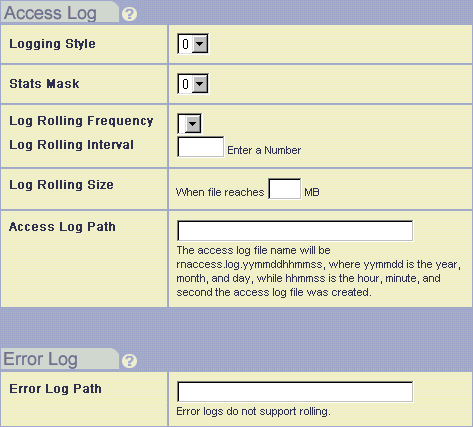
To gather information with the access log, you must first decide what types of information you want to gather. Then make the appropriate changes to Logging Style and Stats Mask.
Information about RealServer activity is collected by Logging Style, and Stats Mask gathers statistics about what arrived at the client and viewer behavior while playing the clips.
At installation, RealServer is configured to place log files in the Logs subdirectory of the main RealServer directory, Logging Style is set to 3, and Stats Mask is set to 0.
rmaccess.log (Windows) or rmaccess (UNIX), and it is usually placed in the Logs subdirectory of the main RealServer directory. The directory (if any) typed here can be absolute or relative to the base path of the main mount point.
The name of the access file will be different if Log File Rolling is enabled; see "Log File Rolling".
If Access Log Path is blank, RealServer records access information in the rmaccess.log or rmaccess file located in the same directory as the RealServer executable file.
To configure RealServer to collect access information, configure Logging Style. There are six options, styles 0 through 5. Each logging style includes information of the logging styles with lower numbers. Thus, Logging Style 3 collects the information that's collected by styles 0, 1, and 2, as well as the material gathered by style 3. If you omit this variable, RealServer uses the default style of 0.
A list of information gathered by each value is given below.
Logging Styles 0, 1, and 3 contain some additional information, as described in "Access Log Format"
Stats Mask supplies more detailed information to the access log. This variable is optional. For a complete description of information collected by each statistics type, and the syntax of the types as they appear in the access log, see the "Statistics Type 1 Information" table, the "Statistics Type 2 Information" table, and the "Statistics Type 3 Information" table.
Not all versions of RealPlayer supply the information requested by Stats Mask; Statistics type 2 is supplied by RealAudio Player versions 3.0 and later, and Statistics type 3 is supplied by RealPlayer versions 5.0 and later.
Access log files can grow indefinitely as they accumulate data. To keep log files to a manageable size, you can limit the access log to a weeks's worth of information or a certain file size, and RealServer will begin a new log file when the limit is reached.
Log file rolling applies only to access log files.
In the Log Rolling Interval box, type the number of time periods. For example, if you chose Days from the Log Rolling Frequency list and typed 4 in the Log Rolling Interval box, RealServer will start a new access log every 4 days.
If you have values in all three boxes, RealServer will use the size or time period that is reached first.
Rolled log files are named with the following format:
name.log.datestamp
Choose Never from the Log Rolling Time Period list, and type 0 (zero) for the Log Rolling size.
The error log contains both information and error messages about server operation. By looking for patterns of errors, you can troubleshoot and correct possible problems on your site.
View the text of the error log using a word processor or text editor.
The error log is an excellent tool for troubleshooting any problems that may arise with your RealServer. An entry is made to the error log only when an error occurs. If no errors occur, this file will not exist.
Error messages relating to RealServer activity appear in the error log. The error log is created when the first error occurs.
For a list of error messages that can appear in this file and what to do about them, visit the RealNetworks technical support page at http://service.real.com. If you have an entry that refers to a fatal error, contact the RealNetworks Technical Support Department for assistance.
The error log records client connections and RealServer errors. Each time an error is generated by RealServer, a record is created in the error log. The error log path is stored in the same directory as the access log, indicated by the LogPath variable.
Syntax of the file is as follows:
***date time servername(process_ID):error_message
where entries are defined below:
A sample error message looks like this:
***15-Nov-96 14:13:30.488 myserver(1556): 6220: No such user: joe
Whenever RealServer sends a stream, it records that information in the access log. In addition, if RealServer sends a stream to a media cache, it creates an entry in the ts.log file. Requests that will be stored in media caches are identified by the port number to which they send the request.
The entries in the ts.log file use one of two formats.
|
|
Note |
|---|
| As with other log files, the brackets within the ts.log file always appear and do not indicate optional material. |
[day month date time year]message
day |
is a three-letter abbreviation, such as Thu for Thursday |
month |
is a three-letter abbreviation |
date |
is the one or two-digit date |
time |
is in twenty-four hour format: hours:minutes:seconds |
[day month date time year]IP_address path_filename
where IP_address and path_filename refer to the stored location of the content.
Configure RealServer to create records of content requested for caches.
ts.log.
To disable the log file of cache requests, change Cache Log to Disabled.