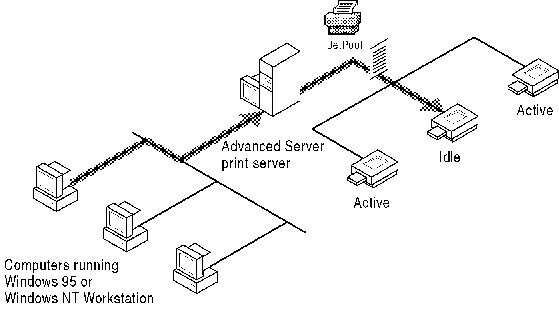
 All devices in the pool are the same hardware model and act as a single unit. All printer (shared printer queue) property settings apply to the whole pool.
Before installing a printer (shared printer queue) on a server, you need to be aware of configuration options that can improve the flexibility and efficiency of network printing. After studying these options, you will be ready set up a UNIX system printer and to use the Printers folder to install and configure printers.
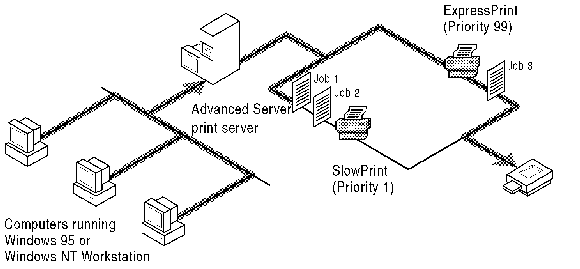
With Advanced Server, it is not necessary to have a one-to-one relationship between shared printer queues (the software) and print devices (the physical printer). By associating shared printer queues and print devices in different ways, you can offer users flexibility in their printing operations. Several configurations are possible, as shown in the following diagrams.
Single Printer (Shared Printer Queue) to Single Print Device
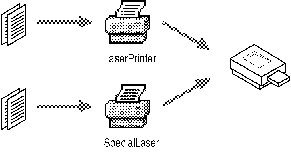
Multiple Printers (Shared Printer Queues) to Single Print Device
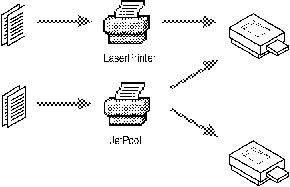
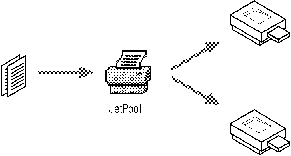
Single Printer (Shared Printer Queue) to Multiple Identical Print Devices
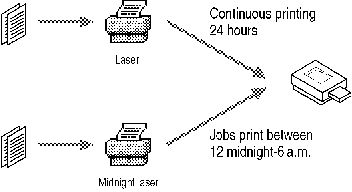
The capability to assign more than one shared printer queue to a print device gives users flexibility in printing documents. For example, two shared printer queues associated with a single print device can offer different print properties: one may print separator pages and the other may not. Or, one shared printer queue may hold documents and print them at night, while another processes documents 24 hours per day.
One way to maximize use of print devices is to stagger printing times. For example, if printer traffic is heavy during the day, you can postpone printing of less important documents by routing them through a shared printer queue that prints only during off-hours.
To do this, use the Scheduling tab of the printer’s Properties sheet to define the time during which a printer (shared printer queue) can print documents. When you specify printing times, the print spooler accepts documents at any time but it does not print to the destination print device until the designated start time. At the stop printing time, the spooler stops sending documents to the print device and saves any documents remaining until it is scheduled to start printing again.
For information on changing printer properties, see Setting Properties for a Printer (Shared Printer Queue).
There may be times when you need to print a document immediately and want to bypass the documents waiting for a print device. You can do this by creating shared printer queues with different priority levels. (Print priority is set in the Scheduling tab of a printer’s Properties sheet.) If two printers (shared printer queues) are associated with a single print device, documents routed to the shared printer queue with the highest priority level (highest number) print first.
To take advantage of this print priority system, create multiple shared printer queues that lead to one print device. Assign each shared printer queue a priority level, and then create a group of users that corresponds to each printer. For example, users in Group1 might have access rights to a Priority 1 shared printer queue, users in Group2 might have access rights to a shared printer queue with Priority 2, and so on. In this way, you can prioritize documents according to the users submitting their documents.
A printing pool consists of two or more identical print devices associated with one shared printer queue. To set up a pool, you add a printer (shared printer queue) using the Add Printer Wizard and assign it as many printers (output ports) as you have identical print devices. (Advanced Server places no limit on the number of printers in a pool.) Whichever print device is idle receives the next document. This configuration maximizes use of print devices while minimizing the amount of time users must wait for documents.
Printer pools have the following characteristics:
All devices in the pool are the same hardware model and act as a single unit. All printer (shared printer queue) property settings apply to the whole pool.
Printer ports can be of the same type or mixed (parallel, serial, and network).
When a document arrives for the printer pool, the spooler checks printer output destinations to see which device is idle.
If one device within a pool stops printing — for example, when it runs out of paper — it will hold a single document at that device. Other documents continue to print to the other devices in the pool, while the delayed document waits until the nonfunctioning device is fixed or the document is restarted.
It is impossible to predict which print device in a pool will receive a particular document. However, if the Advanced Server Messenger Service is active, a workstation will receive messages indicating when documents are complete and identifying the print device by output port (printer name). Unless you want users to rely solely on these messages, it is a good idea to place pooled print devices in a single location.
A particularly flexible printer configuration is one in which a print device is accessible both in and outside of a printing pool, as shown in the following illustration. This configuration provides both the fast throughput of a printing pool and the flexibility of having more than one print device.
The process of setting up a printer or shared printer queue in Advanced Server involves configuring a UNIX system LP Printer and then adding a printer (shared printer queue) using the Add Printer Wizard. This procedure creates a share name which is the same as the printer name (or shared printer queue name). After deciding how users should share network printers, you are ready to begin.
Remember that Advanced Server terminology differs from Windows NT, as shown in the following table.
|
Advanced Server |
Windows NT |
|
Shared printer queue |
Printer |
|
LP Printer |
Port |