Size
Size
Device-specific printer properties describe the physical configuration of a print device, such as which paper trays are loaded and how much memory a device has. These properties vary from device to device. When you create a printer, use the printer’s Properties Device Settings tab to make sure device-specific properties match the settings of the print device. Although default settings work for many printing needs, some special printing options, such as those available with PostScript printer drivers, require specific settings.
Because page printers must store an entire page in memory, they require relatively large amounts of memory. If you are using a page printer, such as a laser printer, make sure that the amount of memory available in the device matches the value shown in the Device Settings tab. If the print device has substantially more or less memory than what is shown in the Device Settings tab, print throughput may suffer.
To adjust the Printer Memory setting on the printer’s Properties Device Settings tab, double-click on the printer icon in the Printers folder and then click on Properties on the Printer menu.
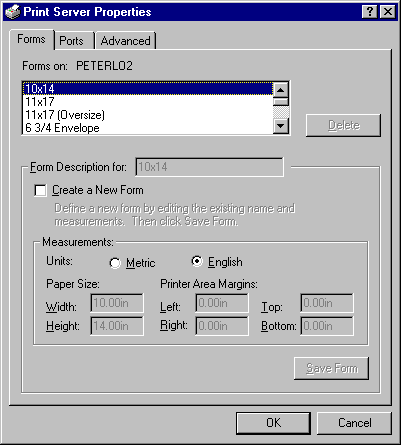
Advanced Server uses a form-based printing model rather than a tray-based printing model. Under a form-based model, the print server administrator configures the Advanced Server print server by defining the form loaded in each paper source (tray). The form is defined in using the following criteria:
Size
Printer area margins
Form name
Using Windows-based applications running on a Windows NT-based computer, each user can select a desired print form. This frees the user from having to know which tray contains which form. Advanced Server interprets tray and form assignment data and sends instructions to the print device to select the correct tray.
Windows-based applications can use different forms within a document. For example, you could use Envelope for the first page, Letterhead for the second page, and Letter for the third and following pages.
Note

To set the default form, select the Draw selected form only from this tray check box in the printer’s Properties Device Settings tab.
For information on creating custom forms, see Creating Custom Forms.
Fonts are collections of characters and symbols that have a specific design and resolution. Print devices use three types of fonts:
Device fonts reside in the hardware of your print device. They can be built into the print device or can be provided by a font cartridge or font card.
Screen fonts are Windows NT fonts (including TrueType) that can be translated for output to the print device. To install screen fonts on your Windows NT computer, use the Fonts option in the Control Panel folder.
Downloadable soft fonts are installed using the Device Settings tab of the printer’s Properties sheet. Clients that use soft fonts and that print to Advanced Server print servers should install soft fonts locally.
Advanced Server supports three types of screen fonts that can be reproduced on printers:
TrueType fonts are device-independent fonts that can be reproduced on all print devices. TrueType fonts are stored as outlines and can be scaled and rotated. To be reproduced on a print device, fonts only need to be present on the computer originating the document. The greatest benefit of using TrueType fonts in a networking environment is their portability; documents with TrueType fonts are independent of any print device, application, or system.
Raster fonts are stored as bitmaps and are device-dependent. If a print device does not support raster fonts, it will not print them. Raster fonts cannot be scaled or rotated.
Vector fonts are useful for devices such as pen plotters that cannot reproduce bitmaps. They can be scaled to any size or aspect ratio.
For each document, the client computer downloads required screen and soft fonts to Advanced Server which then sends them to the print device. To improve printing times, use device fonts which already are present at the print device.
Not all devices can use all three types of printer fonts. Pen plotters, for example, normally cannot use downloaded soft fonts or print raster screen fonts.
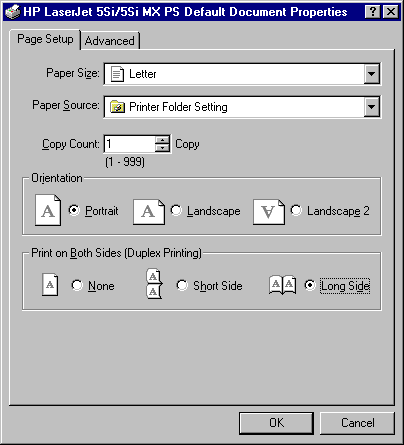
It is easy to confuse printer-specific settings with document properties. Document properties do not rely on a device’s physical settings. When applications create a new document, they often ask the printer for the default document settings.
The following table shows typical document and printer-specific properties.
|
Device-specific properties |
Document properties |
|
Color |
Number of copies |
|
Resolution |
Page orientation |
|
Memory |
Two-sided printing |
|
Font cartridge name |
Collate copies |
|
Form location |
Form |
|
Plotter pen |
To view a shared printer queue’s Document Properties, open the Printers folder, click on the printer, and then click on Document Defaults on the File menu.
Important
Document properties that are set from an application always override document defaults set in the printer’s property sheets. However, if an application does not set a document property (such as page orientation or paper size), the print device defaults to the document properties that were set in the printer’s Document Properties sheets.
You set server properties by displaying and modifying the server’s Properties sheet. This section describes the following activities:
To view a print server’s Properties tab, open the Printers folder, and click on Server Properties on the File menu.