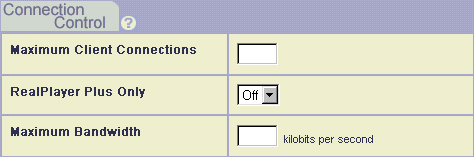
RealServer has several methods of restricting access to content. Methods for restricting access to all material provided by RealServer include limiting the number of clients that can connect at any one time, limiting the amount of bandwidth that can be in use, requiring clients to be a certain version of the RealNetworks RealPlayer, or specifying that only multicast connections are permitted. In addition, you can restrict access based on the IP address of the client.
There are four methods which RealServer uses to block access, via connection volume or client identity. They are listed here, in the order in which they take effect:
Clients that do not meet the above criteria when requesting a presentation receive an error message.
Once a connection attempt is accepted, RealServer looks at the authentication information. Authentication, which can require a user name and password, is discussed in Chapter 10: Authenticating RealServer Visitors.
RealServer can serve any content via HTTP, and includes a method for indicating which virtual paths contain content that can be served via HTTP. In this way you can protect your content but still serve HTML pages.
 |
Additional Information |
|---|
| For information on editing the configuration file, see "Customizing RealServer". |
Be sure that Admin and Ramgen are on this list; Admin refers to RealSystem Administrator, which is served via HTTP. Clips streamed with Ramgen may be requested in HTTP format. Also, the mount point used in scaleable multicast must be included; this value is usually scaleable. And push splitting uses HTTP for the initial connection conversation; add the push splitting mount point to this list, usually farm. If you are using Ram files, and they are stored on RealServer, add the virtual directory where they are stored to this list.
 |
Warning |
|---|
| Do not add directories that contain secure material to this list, or users will not be prompted for their name and password when they view content in the secure directory. |
By using the Maximum Clients setting (the ClientConnections variable in the configuration file), you can limit the number of clients who connect simultaneously. Once this limit is reached, clients that attempt to connect receive an error message, and will not be able to connect until other clients disconnect.
Similarly, the Maximum Bandwidth setting limits the amount of bandwidth RealServer can use to any number of kilobits per second (Kbps).
If you establish values for both variables, RealServer will limit access when the lower threshold is reached.
This number can be from 1 to 32767, as long as it is less than or equal to the number of streams permitted by your license. If it is 0 or blank, RealServer uses the number of streams specified by your license.
For example, to limit the bandwidth to one megabyte, specify maximum bandwidth usage by setting Maximum Bandwidth to 1024.
Two settings restrict access to all RealServer content, based on the client version. RealPlayer Plus Only means that only the RealNetworks RealPlayer Plus software can play presentations.
This variable was used in earlier versions of RealServer and is included here for backwards compatibility. It must be added to the configuration file directly by using a text editor. It denies access to players whose version number is less than the number specified. Use one of the following values for Minimum Player Version:
0 All clients are permitted to connect to RealServer4 RealAudio Player 1.0 and later can connect7 RealAudio Player 2.0 and later can connect8 RealAudio Player 3.0 and later can connect10 RealPlayer 4.0 and later can connect
By setting Delivery Only to Yes in the Back-Channel multicast list, you can require that clients within a certain range of IP addresses connect only in multicast mode.
This feature is described in Chapter 8: Splitting and Multicasting.
You can block or permit access to specific RealServer ports based on the IP address of the requesting machine.
For example, you can restrict which encoders can send encoded streams to your RealServer by restricting access to the encoding port (usually 4040).
Entire subnets can be restricted.
If a visitor clicks an URL for which they are denied access via this method, an error message appears in their client indicating that the URL is not valid.
A more selective form of restricting which material users can access (based on the directory or virtual directory where it's stored) is authentication, described in Chapter 10: Authenticating RealServer Visitors.
Add settings or edit the existing settings in the configuration file to limit which IP addresses can access your material, and which format they can use.
Any.
Any. This is the machine or range of addresses you want to restrict. Requests from the clients with the IP addresses in this variable are restricted in the method of content reception they can use.
To specify a range of IP addresses, either place a colon after the IP address and give the full subnet mask, or place a slash mark after the IP address and give the number of bits for the subnet mask. For example, the following are equivalent and acceptable in the From box: 172.16.3.0:255.255.255.0 and 172.16.3.0/24. Both examples specify the range of addresses from 172.16.3.0 to 172.16.3.254.
To restrict access to all RealServer content, the port numbers should match the other port numbers you've instructed RealServer to listen to; look at the port numbers for RTSP port, HTTP port, and the port value used by the encoder.