


The easiest way to get an understanding of GFS rotation job is through an example. The example below describes a typical GFS rotation setup. General rules and naming conventions follow this section.
For example, if you want to back up all of your UNIX hosts on a regular basis. Once a week you will want to completely back up all hosts, and during the rest of the week, back up files that have been changed.
To set up this GFS rotation scheme, follow the steps below:
2. Select the Method/Schedule tab.
3. Select GFS Rotation as the Schedule Type.
4. Select the Cycle Table tab and choose the backup method from the drop-down menu.
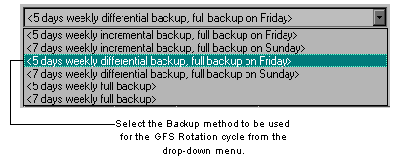
To modify the setting for a particular day within the cycle, click anywhere on the row associated with that day.
The Media Name and Mode are determined by ARCserveIT and can not be modified in a GFS rotation job.
| When setting up any GFS rotation job, make sure you have at least one full backup a week. For a full description of available backup methods, refer to `Selecting a Backup method'. |
| The Backup Mode selection is not available for selection when using GFS rotation. The Backup Mode is set to the default value "Overwrite" for all days of the backup cycle. |
For information on using the "Retry missed targets" field, see `Retrying missed targets'
5. Select the Media Rules tab, and enter the Media Pool Name Prefix for the GFS rotation job.
Preserve Media sets the amount of media required for the GFS Rotation job, using the information set from the backup method on the GFS Cycle tab.
Upon pressing the ENTER key, the information entered into the Media Pool Name field is shown as the prefix to the three GFS media pools. In addition, ARCserveIT selects the amount of media to be preserve for each of the three media pools created by the GFS rotation job.

