A domain user account contains information that defines a user in an Advanced Server domain. In User Manager for Domains, you can establish, delete, or disable domain user accounts. You can also set security policies and add user accounts to groups.
When creating a user account, information is provided that determines how the account can be used. The following table shows the contents of a user account.
|
Account element |
Description |
|
User name |
The unique name that the user types when logging on; often a combination of parts of the user’s first and last names. |
|
Full name |
The user’s full name. |
|
Description |
Text describing the user or user account. |
|
Password |
The user’s secret password. |
|
Logon hours |
The hours during which the user is allowed to log on. This setting affects both being able to log on to the network and being able to access servers. Whether users are forced to log off when their logon hours expire is determined by a setting in the domain’s account security policy. For more information, see Managing Logon Hours. |
|
Logon workstations |
The computer names of the workstations from which a user can work. By default, the user can use any workstation but you can limit this if you want. |
|
Expiration date |
A future date when the account automatically becomes disabled; it is useful to ensure that accounts for temporary employees or students are not kept active unnecessarily. |
|
Home directory |
A directory that is private to the user. An administrator creates this directory, and the user controls access to it. |
|
Logon script |
A batch file or executable file that runs automatically when the user logs on. |
|
Profile |
The path to a folder containing information that is retained to create the user’s desktop environment, such as program groups, network connections, and screen colors, as well as settings determining which aspects of the environment the user can change. For information about user profiles, see Chapter 4, "Managing User Work Environments." |
|
Account type |
Account type is either global or local. Most accounts you create will be global accounts. For information about local accounts, see Adding Local User Accounts. This option is available only in Advanced Server and Windows NT Server domains. |
In addition to the information contained in a user account, several conditions affect a user’s password. These conditions can be selected or cleared by an administrator or account operator for a domain or by the administrator for a workstation or member server.
|
Account condition |
Default |
Comments |
|
User Must Change Password at Next Logon |
Selected |
If selected, the user will be forced to change the password the next time he or she logs on. The setting changes to On when the user’s password reaches the maximum password age as set for the domain in Account Policy. After a password is changed, the setting changes to Off. |
|
User Cannot Change Password |
Cleared |
If selected, the user cannot change his or her own password. This restriction is useful for shared accounts. It does not apply to administrators. |
|
Password Never Expires |
Cleared |
If selected, this user account ignores the password expiration policy set for the domain and the password never expires. This is used for accounts that represent services such as the Directory Replicator service. It also is useful for accounts for which you never want the password to change, such as guest accounts. |
|
Account Disabled |
Cleared |
If selected, the account is disabled and cannot be used to log on. Although it is not removed from the database, no one can log on to the account until it is enabled. |
On some administrative screens such as in User Manager for Domains, a domain name may precede a user name. The domain name indicates where the user’s account was created and where it resides within the overall domain structure. For example, user JohnL from the Sales domain might appear as SALES\JohnL. This name would distinguish him from a different JohnL in another domain, such as ENGINEERING\JohnL.
Two built-in user accounts are created automatically when Advanced Server, Windows NT Server, or Windows NT Workstation is installed: the Administrator account and the Guest account.
The Administrator account is the one you use when you first set up a new domain controller, member server, or workstation. You use this account before you create an account for yourself.
The Administrator user account is a member of the Administrators local group on a domain controller, workstation, or member server. The Administrator account can never be deleted, disabled, or removed from the Administrators local group, ensuring that you never lock yourself out of the computer by deleting or disabling all the administrative accounts. This feature distinguishes the Administrator account from other members of the Administrators local group
The built-in Administrator account gives a user automatic rights to perform domain management tasks on a domain controller or on a workstation or member server that belongs to that domain. During installation, the domain administrator is prompted for a password to the Administrator account. This password should be guarded carefully, not only for security purposes but also because if the password is forgotten or the person who knows the password becomes unavailable, the built-in Administrator account is unusable. The password can be changed but it does not expire.
The user who sets up a workstation can assign a password to the Administrator account or leave it blank. In the latter case, anyone can use the account without a password.
After the PDC is set up, the built-in Administrator account can be renamed but it never can be deleted or disabled.
Tip
Following installation of Advanced Server, it is a good idea to create additional administrative accounts with administrative-level capabilities, while reserving the built-in Administrator account for emergency purposes. When administrative users have separate accounts, their actions can be audited on an individual user account basis rather than trying to audit the Administrator account.
For information about built-in groups and rights, see Using Groups to Assign User Capabilities.
For information about auditing, see Chapter 7, "Monitoring Events."
The Guest account is for use by individuals who wish to log on but who do not have an account on the computer or domain or in any of the domains trusted by the computer’s domain. A user whose account is disabled (but not deleted) also can use the Guest account.
The Guest account does not require a password and can be used for two types of guest logons: local guest logons and network guest logons. You can configure each domain and computer to allow both types of guest logon, only one type, or neither type. The Guest account is disabled by default when Advanced Server, Windows NT Server, or Windows NT Workstation is installed but you can enable it.
You can set rights and permissions for the Guest account like any other user account. By default, the Guest account is a member of the built-in Guests group which allows a user to log on to a workstation or member server (the right to log on locally) only. Rights other than this one, as well as any permissions, must be granted to the Guests local group by a member of Administrators or Account Operators local groups.
Guests have no predefined rights on a domain controller.
A local guest logon occurs when a user logs on interactively at a computer running Windows NT Workstation or at a member server running Windows NT Server and specifies Guest as the user name in the Logon Information dialog box. Because the Guest account on these computers (but not on domain controllers) has the built-in right to log on locally, the guest user can then work at that computer (subject to the rights and permissions you have granted the Guest account) and use it to access the network.
A network guest logon occurs when a user attempts to make a network connection to another computer and that computer does not recognize the user’s user name, domain name, or password.
If the user is logged on to a client computer that is a member of a workgroup, the client computer name is treated as a domain name by the computer to which it is connecting. The computer being connected to might not recognize the user’s account for any of the following reasons:
 The domain specified as containing the user’s account is not trusted and the user does not have an account in the domain or in the directory database of the computer being accessed.
The domain specified as containing the user’s account is trusted but the user does not have an account in the trusted domain.
The domain is the same as the domain of the computer being connected to and the user does not have an account in the domain or in the directory database of the computer being connected to (if it is not a domain controller).
A network guest logon is approved only if the Guest account of the destination computer is enabled and has no password set. The guest user then has all rights, permissions, and group memberships on the computer that are granted to the Guest account, even though the guest user has not specified Guest as his or her user name.
Tip
To allow local guest logons but not network guest logons, enable the Guest account, but revoke its Access This Computer From Network user right in User Manager for Domains.
To allow network guest logons but not local guest logons, enable the Guest account, and revoke its Log On Locally user right. (Be sure Guest has the Access This Computer From Network right.)
For information about managing user accounts, see "Managing Properties for One User Account" in User Manager for Domains Help.
For information about logon validation, see Chapter 2, "Managing Advanced Server Domains."
To create additional user accounts or modify existing accounts, use User Manager for Domains.
When adding a user account, you will be asked to provide a user name; it can be up to 20 characters and it must be unique to the domain or computer that is being administered. It can contain any uppercase or lowercase characters except the following:
" / \ [ ] : ; | = , + * ? < >
A user name cannot consist solely of periods (.) and spaces.
Be consistent in the way you enter user names because when Advanced Server presents lists of user accounts, they usually are sorted by user name. It is a good idea to establish a standard for user names, such as a shortened combination of the first and last names (JeffHo for Jeff Howard).
You also will be asked to provide the user’s full name. It is a good idea to establish a standard for full names so that they always begin with either the last name (Howard, Jeff ) or the first name (Jeff Howard). The full name also can affect the sort order because the user account list in the User Manager for Domains window optionally can be sorted by full name instead of user name.
For information about creating user accounts, see "Creating a New User Account" in User Manager for Domains Help.
User accounts can contain a considerable amount of information. Typing that information for each user can be time consuming, but with Advanced Server Directory Services there are ways in which you can make creating user accounts easier. You can create a new account by copying an existing account and then changing the user name, full name, and initial password, and any other information that must be changed. You also can create one or more template accounts. These accounts are not used by real users but serve only as bases for the real accounts you create. For greater security, you can disable your template accounts to ensure that no user can log on using them. The copies that you make from your template accounts are enabled by default
For information about adding user accounts, see "Creating a New User Account" and "Copying a User Account" in User Manager for Domains Help.
The user account list in the User Manager window includes all of the user accounts of the displayed domain. One or more user accounts can be selected from this list by using the Select Users command.
You can copy, delete, rename, or modify the properties of an individual user account or create a new group that contains that account.
You can modify or delete multiple user accounts at the same time.
You can create a new group containing multiple user accounts.
Note
When Low Speed Connection is selected, the Select Users command is unavailable.
For more information, see "Selecting User Accounts," "Managing Properties for One User Account," and "Managing Properties for Multiple User Accounts" in User Manager for Domains Help.
It often is quicker and more convenient to copy an existing user account than to create a new one. By copying, you ensure that the group memberships and many other properties are copied to the new account.
When a user account is copied, its description, group memberships, logon hours, logon workstations, and account information are copied exactly.
To have the system automatically enter the account user name into the home directory path, use %USERNAME%. For more information, see Using %USERNAME% in the Home Directory Path.
The user name, full name, and password boxes of the new account are blank and must be entered. The User Cannot Change Password and Password Never Expires check boxes are copied.
Note
When copying an account that is a member of the Administrators local group, the User Cannot Change Password setting is not copied.
Usually, the User Must Change Password At Next Logon check box is selected, regardless of its setting in the original account. However, if the User Cannot Change Password check box is copied as selected, then the User Must Change Password At Next Logon check box is cleared.
The Account Disabled check box is always cleared, regardless of the setting in the original user account. You can create a new user account, configure it as needed, disable it, and then use it as a template. You can quickly make numerous copies of a disabled template account.
User Manager for Domains does not copy rights and permissions granted to a user account. However, it is recommended that these be provided only to groups and not granted directly to user accounts. Because the group memberships of the original account are copied to the new user account, the new user account will usually have the same capabilities and access to resources as the original account.
For information about how to copy user accounts, see "Copying a User Account" in User Manager for Domains Help.
For information about user profiles, see Chapter 4, "Managing User Work Environments."
A home directory contains a user’s files and programs; it can be assigned to an individual or be shared by many users. Because home directories collect user files in one location, they make it easy for an administrator to back up user files and delete user accounts. Specify a home directory by adding a directory path to the user account. Home directories must be added to a shared directory with appropriate access.
The home directory is a user’s default directory for the File Open and Save As dialog boxes, for the command prompt, and for all applications that do not have a working directory defined.
User Manager for Domains automatically applies directory permissions if it creates the home directory. When one user account is being administered and a new home directory is created, that user is granted Full Control. When two or more user accounts are being administered and a new home directory is created, Full Control is granted to Everyone.
User Manager for Domains does not automatically apply permissions if the directory already exists. In this case, you must apply the permissions using Windows NT Explorer.
If the user account does not specify a home directory, the default home directory for upgraded computers is \USERS\DEFAULT on the user’s local drive where Windows NT is installed. If Windows NT Workstation or Windows NT Server has been installed for the first time, the default home directory is the root of the drive where Windows NT is installed. (To change the default home directory to a shared network directory or to another local directory on the user’s workstation, use User Manager for Domains.)
When administering a user account in a domain, you should assign a network home directory. User Manager for Domains automatically creates that home directory. If it cannot, a message instructs you to create the directory manually.
When administering a user account on a workstation or member server, you should assign a local home directory. User Manager for Domains automatically creates that home directory at that computer. If it cannot, a message instructs you to manually create the directory.
If you are administering a domain and you specify a local path for a home directory, User Manager for Domains will not create the home directory.
Note
If an Advanced Server domain user also has a UNIX system account, it may be useful for the administrator to make the network home directory the same as the UNIX system home directory.
For information about adding home directories, see "Managing the User Environment" in User Manager for Domains Help.
An Advanced Server user account can be associated with a UNIX system user account on a UNIX system that is running Advanced Server. To create this type of association, use the mapuname command. After you map an Advanced Server user account to a UNIX system user account, any file that the Advanced Server user creates will be owned by the UNIX system user account.
Having both Advanced Server and UNIX system user accounts allows your UNIX system files to be owned by your UNIX system user account and to be accessed through your Advanced Server user account. UNIX system user accounts should be assigned to Advanced Server users on the UNIX systems where their home directories reside. Advanced Server users who are not mapped to UNIX system user accounts are mapped by default to the lmworld user account.
Assigning UNIX system user accounts to Advanced Server user accounts with the mapuname command ensures that UNIX system user accounts are created only when necessary. It also gives administrators complete control over the mapping of Advanced Server user accounts to UNIX system user accounts. However, it does require that UNIX system user accounts be created and assigned manually.
UNIX system user accounts can be created and assigned automatically to new Advanced Server user accounts. To do so, set the CreateUnixUser value in the Registry to "1." The CreateUnixUser value is in HKEY_LOCAL_MACHINE and its path is as follows:
\SYSTEM\CurrentControlSet\Services\AdvancedServer\UserServiceParameters
When an Advanced Server user account is created, a UNIX user account will be created and assigned automatically to that user on every Advanced Server in the domain that has this value set to 1.
The UNIX system user account name that is assigned to the Advanced Server user account will be the same as or similar to the Advanced Server user account name. Differences can arise in cases of long, duplicate, or special character Advanced Server user account names.
Additional Registry values that control the automatic creation of UNIX system user accounts are as follows:
In the AdvancedServer\UserServiceParameters key, the Exclude, ForceUniqueUnixUserAccount, NewUserShell, SyncUnixHomeDirectory, and UserComment values
In the LanmanServer\Parameters key, the userpath value
For more information about the Advanced Server Registry, see Advanced Server Administration.
If an Advanced Server user is mapped to a non-existent UNIX system user account, or if the UNIX system account for an Advanced Server user is deleted, the Advanced Server user will not have access to any shared resources on the UNIX system. To ensure that the Advanced Server user can continue to access the system, delete the account mapping or re-map the user to another UNIX system user account.
For more information about the mapuname command, type man mapuname at the Advanced Server command prompt.
A user profile consists of work environment settings that are loaded by the system during logon for a given user. These settings include all the user-specific settings of a user’s Windows environment, such as screen colors, network connections, printer connections, mouse settings, shortcuts, window size and position. User profiles are identified by the user name.
Local user profiles are created automatically on the computer at logon the first time a user logs on to a computer running Windows NT Workstation or Windows NT Server. Each user’s individual user profile is available to that user on successive logons at that computer.
Roaming user profiles are available on computers running Windows NT Workstation or Windows NT Server. To enable roaming user profiles, an administrator enters a user profile path into the user account. The first time the user logs off, the local user profile is copied to that location. Thereafter, the server copy of the user profile is downloaded each time the user logs on (if it is more current than the local copy). Both the local and server copies are updated each time the user logs off.
Mandatory user profiles are roaming profiles that are created for the user and cannot be changed by the user. When the user logs off, the local user profile is not saved and a copy of the local user profile is not copied to the server.
User profiles are available on computers running Windows 95 however a user profile created on Windows 95 is not available to the user on a computer running Windows NT and vice versa, even if the user profile is stored on a server.
For more information about user profiles, see Chapter 4, "Managing User Work Environments."
In the User Environment Profile dialog box, assign a roaming or mandatory profile to a user account by typing its full path and user profile folder name in the User Profile Path box.
\\server\share\profile name
For information about adding a user profile location, see "Managing the User Environment" in User Manager for Domains Help.
In the Home Directory box, %USERNAME% can be substituted for the last entry in the path. The system later substitutes the user name of the user account. This substitution is useful when multiple user accounts are selected.
For example, you have selected eight user accounts. In the Home Directory box, you might select Connect, specify a drive letter of K, select the To box, and type \\SALES\home\%username%. When you choose OK to save the User Environment Profile, the actual user name will be substituted for each %USERNAME% entry.
For information about logon scripts and user profiles, see Chapter 4, "Managing User Work Environments."
A right authorizes a user to perform certain actions on a computer system, such as backing up files and directories, logging on to a computer interactively, or shutting down a computer system. Rights exist as capabilities for using either domain controllers at the domain level or workstations or member servers at the local level. Rights can be granted to groups or to user accounts, but are best reserved for use by groups. Rights also can be granted to the special built-in groups Everyone, Interactive, and Network. For more information about these groups, see Special Groups.
A user who logs on to an account that belongs to a group to which the appropriate rights have been granted can carry out the corresponding actions. When a user does not have appropriate rights to perform an action, an attempt to carry out that action is blocked by Advanced Server.
Note
Rights apply to the system as a whole and are different from permissions, which apply to specific objects. A permission is a rule associated with an object (usually a directory, file, or printer), and it regulates which users can have access to the object and in what manner. Most often the creator or owner of the object sets the permissions for the object.
Because all rights are not associated with a specific object and are applied at the domain (domain controllers) or local (workstation or member server) level, they sometimes can override permissions set on an object. For example, a user logged on to a domain account that is a member of the Backup Operators group has the right to perform backup tasks for all servers of the domain. Doing so requires the ability to read all files on those servers, even files on which their owners have set permissions that explicitly deny access to all users, including members of the Backup Operators group. A right — in this case, the right to perform a backup — takes precedence over all file and directory permissions.
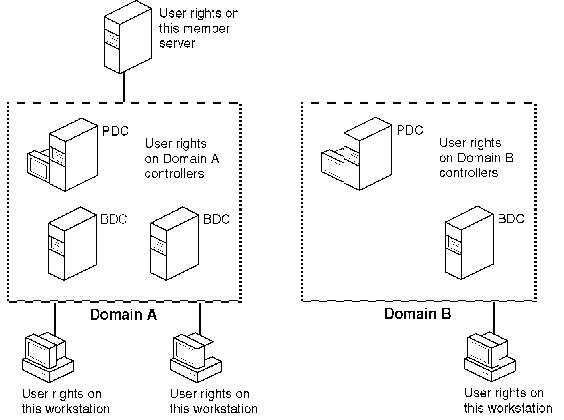
The following diagram shows the range of user rights within a domain (all domain controllers have the same user rights) and on workstations (every workstation and member server has it’s own set of user rights).
Members of the Administrators local group in a domain or on a local computer (member server or workstation) have the built-in ability to grant rights to users for the domain or the computer, respectively. The easiest way to provide rights to a user is to add a user’s account to a built-in group that has the desired rights. (Each built-in group conveys certain rights and capabilities to its members.) However, when you create new local groups, or if a special situation occurs, it is possible to grant a right to, or remove it from, a user or a group account.
Note
When you administer the User Rights policy for a domain, the computers referred to in the following table are the primary and backup domain controllers of the domain; when you administer the User Rights policy on a workstation or member server, the computer referred to is the workstation or member server.
The following table describes the user rights that can be managed in Windows NT with the User Rights command on the Policies menu. Only the user rights in bold italic apply to Advanced Server.
|
User right |
Allows a user to |
|
Access this computer from network* |
Connect over the network to a computer. |
|
Add workstations to domain |
Add a workstation to the domain, allowing the workstation to recognize the domain’s user and global group accounts and those of trusted domains. |
|
Back up files and directories |
Back up files and directories, allowing the user to read all files. This right supersedes file and directory permissions, and also applies to the Registry. |
|
Change the system time |
Set the time for the internal clock of a computer. |
|
Force shutdown from a remote system |
This right is not currently implemented. It is reserved for future use. |
|
Load and unload device drivers |
Install and remove device drivers. |
|
Log on locally |
Log on at the computer itself, from the computer’s keyboard. |
|
Manage auditing and security log |
Specify what types of resource access (such as file access) are to be audited. View and clear the security log. This right does not allow a user to set system auditing using the Audit command in the Policies menu of User Manager for Domains. This ability is always held only by the Administrators group. |
|
Restore files and directories |
Restore files and directories, allowing the user to write to all files. This right supersedes file and directory permissions, and also applies to the Registry. |
|
Shut down the system |
Shut down Windows NT Server. |
|
Take ownership of files or other objects |
Take ownership of files, directories, and other objects on a computer. |
|
* In Advanced Server, this right cannot be revoked from the Administrators local group. | |
If Show Advanced User Rights is selected, some additional rights (described in the following table) can be managed with the User Rights policy. Many of these advanced rights are useful only to programmers writing applications to run on Windows NT Server or Windows NT Workstation, and typically are not granted to a group or user. None of these rights apply to Advanced Server computers.
|
Advanced user right |
Allows |
|
Bypass traverse checking |
A user to change directories and travel through a directory tree, even if the user has no permissions for those directories. |
|
Log on as a service |
A process to register with the system as a service, used to administer the Directory Replicator service. For information about directory replication, see Chapter 5, "Managing Shared Resources and Resource Security." |
|
Act as part of the operating system |
A user to perform as a secure, trusted part of the operating system. Some subsystems are granted this right. |
|
Create a page file |
A user to create a paging file. |
|
Create a token object |
A user or program to create access tokens. Only the Local Security Authority can do this. |
|
Create permanent shared objects |
A user to create special permanent objects, such as \Device, which are used within the Windows NT platform. |
|
Debug programs |
A user to debug various low-level objects such as threads. |
|
Generate security audits |
A user or program to generate security audit log entries. |
|
Increase quotas |
A user to increase object quotas. |
|
Increase scheduling priority |
A user to boost the priority of a process. |
|
Lock pages in memory |
A user to lock pages in memory so they cannot be paged out to a backing store such as PAGEFILE.SYS. |
|
Log on as a batch job |
A user to log on using a batch queue facility for delayed logons. |
|
Modify firmware environment variables |
A user to modify system environment variables. (Users can always modify their own user environment variables). |
|
Profile single process |
The use of Windows NT platform profiling (performance sampling) capabilities on a process. |
|
Profile system performance |
The use of Windows NT platform profiling capabilities on the system. (This can slow the system down.) |
|
Replace a process-level token |
A user to modify a process’s security access token. This is a powerful privilege used only by the system. |
For information about setting user rights, see "Managing the User Rights Policy" in User Manager for Domains Help.
For information about adding users to groups, see Using Groups to Assign User Capabilities.
For information about granting rights to new groups, see Granting Rights to a Local Group.
For information about the capabilities of built-in groups, see Built-in Local Groups—Controlling What Users Can Do.
By default, users can connect to a server 24 hours a day, seven days a week. To restrict this access, use the User Properties dialog box.
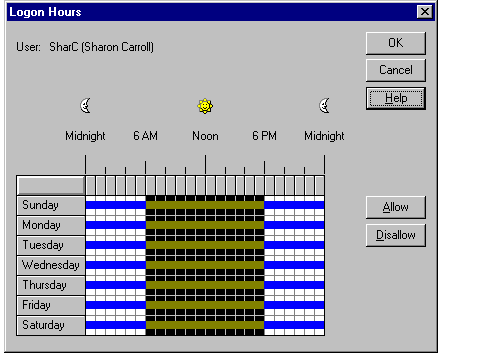
When you select a user account in User Manager for Domains and view user properties, you can select Hours in the User Properties dialog box to change the settings for that user. The Logon Hours dialog box displays a one-week calendar, with logon hours displayed in one-hour increments across seven days. A box represents each hour. For example, the first box in each row represents the hour from midnight through 12:59 A.M., and the last box in each row represents the hour from 11:00 P.M. through 11:59 P.M.
Note
The logon hours are in the time zone of the primary domain controller, not in the time zone of the workstation or server to which the user is logging on or connecting.
The filled boxes indicate when the user is allowed to connect to domain servers; the empty boxes indicate when a user is prohibited from connecting.
When a user is connected to a server and the logon hours are exceeded, the user either will be disconnected from all server connections or will be allowed to remain connected but denied any new connections, depending on the status of an option in the Account Policy dialog box.
For information about setting logon hours, see Managing Logon Hours.
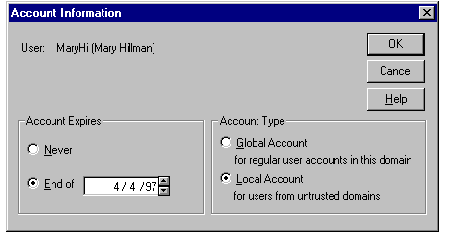
You can define an account expiration date and specify the account type for user accounts.
When an account has an expiration date, the account is disabled at the end of that day. (Expired accounts are not deleted, only disabled.) When an account expires, a logged on user remains logged on but can establish no new network connections and cannot log on again after logging off.
A local account is a user account provided in a domain for a user whose regular account is not in a trusted domain. Local accounts provide access to resources in a single domain, and resources can be used only by connecting to a domain controller over the network.
By default, a new user account is a global user account.
Users of local accounts first must log on to the network using a workgroup computer account or a global domain account and then connect to a domain controller in the domain where the local account resides.
When the user connects to the domain controller, the user’s credentials (domain name, user name, and password) are passed to the domain controller. This controller first checks the domain name and, because the domain is not trusted, determines whether the user has a local or global user account by the same name and if the password specified in the user’s credentials matches the password for the local account. If the account is found but the passwords do not match, the user is prompted for the local account password.
A user account can be created as a local account to give domain access to a user who:
Is not a member of any domain.
Is a member of a domain that is not trusted.
For example, a local account would be required for a user who is a member of a workgroup or whose domain account is located in a LAN Manager 2.x domain which does not recognize trust relationships.
You easily can return the account type to global if necessary. For example, if you created an account for a user whose workstation is a member of a workgroup, and the workstation later joined the domain.
In User Manager for Domains, the icon at the left is displayed rather than the standard global user account icon. This icon represents local user accounts.
The default setting for a new user account is Global Account. When you add a new local user account, you can change the default setting in the Account Information dialog box.
For information on managing user accounts, see "Creating a New User Account" and "Managing Account Information" in User Manager for Domains Help.
Any user account — including built-in user accounts — can be renamed. Because it retains its security identifier (SID), a renamed user account retains all its other properties, such as its description, password, group memberships, user environment profile, logon hours, logon workstations, account information, and any assigned permissions and rights.
For information about renaming a user account, see "Renaming User Accounts" in User Manager for Domains Help.
To prevent a user from logging on, you can disable or delete the user account.
A disabled user account still exists, but the user is not permitted to log on; a deleted user account is completely removed.
A disabled account still appears in the user account list of the User Manager for Domains window; a deleted account is removed from the user account list of the User Manager for Domains window, and it cannot be restored.
A disabled account can be re-enabled at any time.
To prevent accidental deletions, it is a good idea to disable a user account first, and then to delete the disabled accounts periodically.
Note
Internal processes in Advanced Server refer to a user account’s SID rather than its user name. If you delete a user account that had Read access to a certain shared directory and then create another user account with the same user name, the new account will not have access to the directory. You must reapply permissions to the shared directory.
For information about disabling and deleting user accounts, see "Disabling and Enabling User Accounts" and "Deleting User Accounts" in User Manager for Domains Help.