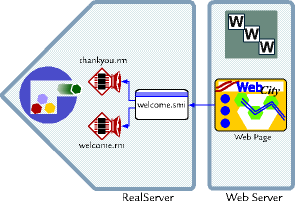
This chapter describes how to prepare RealServer for streaming on-demand, or pre-recorded, presentations.
RealServer is ready to stream content when you first install it, and will stream static media that you place in the Content directory.
Notice that the Web pages do not link directly to the media; they link to the SMIL files located on the RealServer. If the Web pages were to link directly to the media files, these files would be downloaded similarly to HTML files, and the visitor would not receive the material quickly.
Setting up RealServer to stream static content consists of four steps:
Neither the content nor the SMIL files go on the Web server. The only things that you'll change on the Web server are the links that point to the SMIL files.
 |
Note |
|---|
If you have existing content that uses metafiles (.ram
files), you'll only modify the links within the metafiles.
|
When RealServer is installed, it is configured to stream content found in the Content subdirectory of the main RealServer directory. Subdirectories of Content may also contain content. You can change where RealServer looks to find content by changing the base path value for the main mount point.
 |
Additional Information |
|---|
| See "Mount Points". |
Ensure that the settings for HTTP Port, PNA Port and RTSP Port are correct. These indicate where requests will arrive at RealServer, and the links you create will need to match them.
|
|
Additional Information |
|---|
| See "Port Variables". |
Place clips that you've encoded with RealNetworks tools in the RealServer Content subdirectory. If you do not want to use this directory, either place the files in a subdirectory of Content and add a virtual directory to the URL, or create another mount point to use for this content.
For more information about where to place clips, see "Storing Files and Presentations".
SMIL files control the synchronization of media files. If you want to stream several clips, create a SMIL file. If you're linking to a single file, you don't have to create a SMIL file.
|
|
Additional Information |
|---|
| See "SMIL Files". In addition, RealSystem G2 Production Guide gives detailed information on SMIL files. |
On the Web pages on your Web server, you'll add links that point to the SMIL files which you just created. See "Links from Web Pages to Streamed Media Clips".
Visitors to a site will view your content via different bandwidth volumes. When a client requests a clip, it sends its bandwidth capabilities to the RealServer. RealAudio® and RealVideo® files encoded with the RealNetworks encoding tools record media at different rates, and store them in a single file, called a SureStream file. A RealServer that receives a request for a media file from a client will note the client's bandwidth, locate the correct portion of the file, and will stream the highest portion of the stream that matches the request. In this way, visitors to your site will receive the highest possible quality transmission, the person who encodes the file need encode only once, and you the administrator need keep track of only one file. RealServer switches between streams automatically.
If the file to be streamed does not contain an encoded portion that matches the client's requested bandwidth, RealServer sends a message to the client indicating that no matching bandwidth is available.
Bandwidth negotiation of RealAudio and RealVideo was handled in previous versions of RealNetworks products by creating one file for each compression algorithm, and putting all the files in a directory whose name ended with .rm. Files were named according to the compression algorithm with which they were encoded.
If you still have these files, you don't need to re-encode them. RealServer reads the old directory structure and can perform the bandwidth negotiation automatically. Bandwidth negotiation is always active; only in those directories ending with .rm will RealServer perform old-style bandwidth negotiation.
Audio and video data types are the only types that contain multiple compression rates within one files. If you are streaming another datatype, such as text, bandwidth negotiation is handled via a SMIL file.
Instructions on doing this are available in RealSystem G2 Production Guide.