This chapter covers features which are specific to the operating system, as well as reserving IP addresses for RealServer's use, running RealServer on the same system as a Web server, and working with firewalls.
A media cache is server software usually installed on an intranet and sometimes on a large ISP, that stores streamed media. When a client on the intranet or hosted by the ISP requests a streamed media file, the media cache intercepts the request and sends it on behalf of the client. The media cache then stores the requested media and streams it to any other clients who subsequently request the same material. By sharing the distribution load, media caches conserve bandwidth over the Internet and allow RealServers to send streams to a wider audience.
RealServer is designed to work with media caches. RealServer is configured at installation to allow all content to be cached by media caching software. This ensures that clients whose requests are sent via a media cache will be able to view your content. Also, because media caches are now rebroadcasting some of your content, your RealServer now has more connections available.
If there is content served by your RealServer which you do not want to be cached by a media cache, you can mark it as non-cacheable, on a per-file or per-folder basis.
All client requests for streaming media are recorded in the access log, as if they were made directly by clients and not sent through a media cache. In addition, a separate log file, cache.log, records all clips which were accessed by a media cache. The cache.log file can give you an idea of which content is most requested by media caches. The two logs are independent of each other.
 |
Additional Information |
|---|
| The cache.log file is explained in Chapter 13: Reporting. |
Instruct RealServer to permit RealServer to stream clips requested via a media cache by doing the following two things:
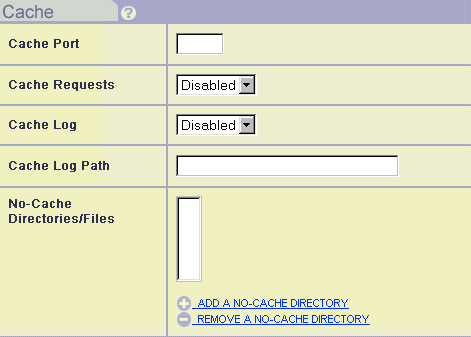
Two settings turn on the streaming of cached requests.
7802 is shown. This is the port number at which requests sent via media cache will arrive. If you change this value, requests by media caches will not be accepted by RealServer, and therefore will not be cached. If you change the default value of 7802, you will disable streams to media caches unless you inform the administrators of all media caches that are accessing your streams, and tell them of the new value.
Unless you specify otherwise, all material on your RealServer may be cached. You can restrict the virtual directories that are available to such requests. If RealServer receives a request for material included in the No Cache Directories/Files list, it streams the file directly to the client rather than allowing it to be cached and re-transmitted. As always, RealServer records the transaction in the access log, and reports a download size of 0 bytes in the cached requests log file.
In addition to indicating specific directories or files that are not cacheable, you can indicate that certain clients or media caches are not allowed to cache any of your material. You can also disable all caching of all material from your RealServer.
Create an access rule for the media cache you want to restrict. In addition to specifying the IP address, indicate the port number to which access should be denied (usually 7802).
|
|
Additional Information |
|---|
| See "Limiting Access Via IP Address". |
When RealServer starts, it uses the first IP address of the first interface card it detects. If there is more than one IP address on the machine on which RealServer is installed, the operating system assigns an address to RealServer. Because the operating system's assignments may be random, clients attempting to connect to your RealServer may not be able to receive streams.
You can configure RealServer to always use the same IP addresses by setting up the IP Binding list. Within this list, you cite individual addresses to use, or you can reserve all the IP addresses available to the machine on which RealServer is installed.
|
|
Additional Information |
|---|
| Instructions on customizing RealServer can be found in Chapter 4: Customizing RealServer Features. |
RealServer will bind to the specified addresses only; it will not bind to localhost.
0.0.0.0, and delete any other addresses. RealServer will automatically bind to all addresses and to localhost.
 |
Warning |
|---|
Use either 0.0.0.0 or other addresses, but not both. If
you use both, RealServer will not start.
|
If you leave the IP Address box blank, RealServer binds to the host IP address and localhost. It does not bind to any others.
If you install RealServer on the same system as your Web server, you may need to complete additional steps. Most Web servers use port 80 for HTTP requests. At installation, RealServer's default HTTP Port is 8080, but if you configure RealServer to use port 80 (the same port as the Web server), problems may ensue. You may have to perform the following steps:
Because RealServer can serve requests for HTML pages sent via HTTP (such as RealSystem Administrator), if RealServer is on the same system as a Web server, requests that begin with http:// may be misdirected. When a user clicks a link that begins with http:// and does not contain a port number, the client supplies a port number-80. When the Web server and RealServer are on the same machine, the Web server will attempt to serve the file. If the link points to what's meant to be a RealSystem presentation, the Web server will not find the file and will display the error message "File not found."
To prevent this problem from occurring, make sure the HTTP Port value is not the same as the port number your Web server is using. The default value is 8080. Most Web servers use port 80. Be sure that you include the port number in the URL.
You may need to reserve at least one IP address for RealServer's use. See the "Reserving IP Addresses for RealServer's Use" section, above.
A firewall is a software device located on a network that monitors all transmissions between the organization's network and the Internet. The firewall's role is to ensure that all communication, in both directions, conforms to the organization's security policies.
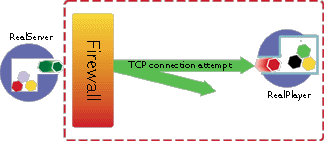
As shown in "Communication Between RealServer and RealPlayer", a client requesting presentations from RealServer first establishes a two-way TCP connection to the RealServer. RealServer uses this connection initially as a means of sending information to the client about the streamed media, such as the name, length, and copyright of the clip. The client uses the connection to send commands to RealServer when features such as the "play" and "stop" buttons are activated.
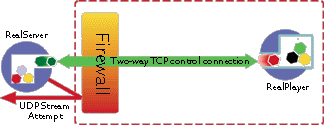
After the initial connection is established, RealServer then establishes a UDP channel back to the client. The actual media is sent along this channel. The UDP channel is more like a custom radio channel than a telephone call; the client has no way of sending information back to RealServer over this UDP channel.
In general, firewalls permit one-way access to the Internet. Because RealServer and the client need to establish two-way communication to stream and receive media content, firewalls may reject a client's attempt to establish this connection, and the client's request for a clip will "bounce" off the firewall.
Other firewalls may be configured to permit the two-way TCP connection, but will then reject the one-way UDP data stream.
Similarly, if RealServer is behind a firewall, it will not be able to open the necessary channels to communicate with clients.
Some very strict firewalls allow only HTTP transmissions. If a client that is behind such a firewall attempts to view presentations streamed by your RealServer, they may not receive your content. RealPlayer includes an option to request that all streams be sent in HTTP format.
To receive these clients' requests, verify that the HTTP Port value is 80 or 8080. This works when RealServer is on a different computer than the Web server, or has a separate IP address.
If your RealServer is behind a firewall streaming content to clients on the other side of the firewall, reconsider its location. A RealServer behind a firewall does not make much sense, for the following reasons: RealServer needs to open TCP connections based on client requests, and most firewalls permit TCP connections only when they are initiated inside the firewall. Also, RealServer needs to open UDP channels on a variety of ports. Here again, most firewalls permit few, if any, UDP connections.
The solution is to move the firewall to a perimeter network, sometimes known as a De-Militarized Zone (DMZ). A perimeter network is outside the main internal network, but still secured by the firewall. Client requests for TCP and UDP connections do not pose the security risk here that they do when the RealServer is behind a firewall. Machines in the perimeter network can be set up with a different, more liberal, set of security features than is suitable for those on the internal network.
While RealServer functions nearly identically on both Windows NT and UNIX platforms, there are a few differences that allow you to take advantage of unique characteristics of each operating system.
This section describes features unique to RealServer running on a Windows NT system.
When you install RealServer, you have the option to install it as a service. You can also configure this later. Several RealServers can be run from the same machine, with different configuration files.
|
|
Additional Information |
|---|
| See "Setting Up RealServer as a Service". |
RealServer comes with a file to use with the Windows NT Performance Monitor, so that you can use the Windows NT method of monitoring RealServer performance.
|
|
Additional Information |
|---|
| See Chapter 12: Monitoring Activity. |
This section describes features unique to RealServer running on a UNIX system.
RealServer creates a text file that stores the current value of the process ID of the main RealServer file, rmserver. The file is stored in the directory indicated by the PIDPath variable, and is named rmserver.pid at installation. If PIDPath is omitted from the configuration file, RealServer stores the information in the directory specified by the LogPath variable.
When you make changes to RealServer using RealSystem Administrator, those changes are saved and RealServer is restarted immediately. If you make changes to the configuration file manually, you will need to restart RealServer yourself. This is possible for RealServer running on a UNIX platform with the SIGHUP command. Use the following command at a command prompt:
kill -HUP processID
where processID is the RealServer process number, as shown in the rmserver.pid file.