Welcome to RealServer, the streaming media solution! RealServer streams virtually any datatype, including audio, video, and images. RealServer allows you to grow as your needs and use expand. This chapter shows how you can put RealServer to work for you.
RealServer streams both live and on-demand material, through unicasting or multicasting. It works with Web servers to stream to clients over networks and the Internet. Some RealServer features can interact with third-party products to create specialized functions.
This guide is intended for the technical system administrator who will manage RealServer and its activities, but not necessarily create the material to be streamed. Information on creating content is available in a companion book, RealSystem G2 Production Guide.
IS professionals, server administrators, Web masters and others providing Web pages for the Internet and intranet may also find this document useful.
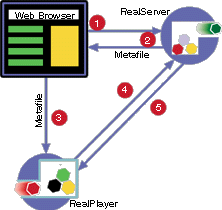
The following diagram shows an overview how RealSystem components work together.
As the user clicks a link that points to a RealServer presentation, RealPlayer opens a two-way connection with RealServer. This connection uses TCP to send information back and forth between RealPlayer and RealServer.
Once RealServer approves the request, it sends the requested clip along a one-way UDP channel.
As it receives the streamed clip, RealPlayer plays it at high quality.
Synchronized Multimedia Integration Language files, or SMIL files, are files that coordinate the delivery of several clips. A SMIL file (pronounced "smile") tells the client what clips to play, in what order, and where to show them on the screen. SMIL files can perform basic or sophisticated timing and layout. For detailed information on creating SMIL files, see RealSystem G2 Production Guide.
A visitor to a Web site clicks links that point to content served by RealServer. The way these links are constructed tells RealServer how to stream them. To understand how to construct a link to RealServer content, you must first learn about key RealServer features such as ports, mount points, and base paths. You will need to give this information to the content creators who will be using your RealServer. They won't need to know the details of RealServer operation, just what information to include in their links.
Once you have read about ports, mount points, and base paths, you'll see how to create links, described in "Linking to Files and Presentations".
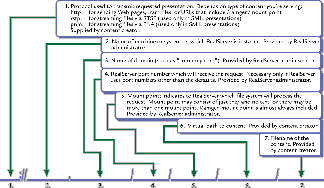
This illustration shows the parts of a URL that points to material served by RealServer. More detailed explanations follow this diagram.
For example, the following link to a RealVideo file would appear in a Web page:
http://realserver.company.com:8080/Concerts/French/debussy.rm
The key to understanding where to put media files and how to reference them-and therefore how to take full advantage of RealSystem's power-are ports, mount points, file systems, base paths, and virtual paths.
RealServer uses two main protocols to communicate with clients: RTSP (Real Time Streaming Protocol) and PNA (Progressive Networks Audio). These protocols work with the two-way TCP connection to send commands from the client such as "start" and "pause," and RealServer sends information about the clips' titles to the client. Authentication demands from RealServer and passwords supplied by the user are also sent along this connection.
RTSP is a client-server protocol designed specifically for serving multimedia presentations. It is an open standard, one that is very useful for large-scale broadcasting. Only RTSP can deliver SureStream™ files with their multiple bandwidth encoding. RealPix also requires RTSP.
PNA is the proprietary client-server protocol designed and used by RealNetworks in RealSystem versions 5.0 and earlier. The ability to serve via PNA is supported in RealServer G2 for compatibility with older versions of RealPlayer.
In both RTSP and PNM, media clips are streamed over a one-way UDP channel which is separate from the TCP channel.
Port settings tell RealServer where it should listen for RTSP, PNA, and HTTP requests. These settings are implied in the URL that points to the content and are assumed by RealPlayer to have certain values. When RealPlayer requests an URL that begins with rtsp://, it sends the request to the RealServer's port 554. RealPlayer directs an URL that begins with pnm:// to port 7070. Requests beginning with http:// are first sent to port 80, and if no response is received, they are redirected to port 8080.
 |
Additional Information |
|---|
| RTSP and PNA are described in "Protocols". |
If your RealServer and Web server are on the same machine, you may need to modify the HTTP Port setting. See "Running Web Servers and RealServer on the Same System" for additional information.
You can use alternate port numbers if multiple RealServers are using the same IP address, or if you want to segregate requests for different material. If you do use alternate port numbers, be sure to include the new numbers in the links.
A mount point reference appears in every URL. It tells RealServer which plug-in to use when processing the URL request.
When RealServer receives a request for a clip, it examines the URL of the requested clip. RealServer looks through its configuration file for a plug-in whose mount point variable matches the first string after the domain name. It then gives the request to the plug-in named by that list. Most on-demand presentations are handled by the local file system plug-in; the G2 encoder plug-in handles live streams.
To specify a mount point that points to the RealServer main content location, use a forward slash mark ("/").
If you change the name of a mount point, remember to update the URLs with the new mount point name.
In some cases, a link will include more than one mount point. The Ramgen file system is sometimes used in addition to mount points.
Using different mount points that point to the same base path or use the same file system can be an effective way of providing conceptual organization of content.
For example, if content on your RealServer is being supplied by different people, you may elect to establish a different mount point for each person's material.
While the mount point identifies a virtual directory, the base path gives the actual directory where the clips are stored. The base path identifies the "root directory" for the URLs that point to clips; it can even point to a completely different physical drive. The base path is similar to an alias.
Consider the following directory structure:
(RealServer main directory)
                                    Content
                                              Speeches
                                              Concerts
                                                         French
                                                     Liveconcerts
If the main mount point is / and the base path is C:\Program Files\RealServer\Content (Windows) or /RealServer/Content (UNIX), a SMIL file link for a clip in the main Content directory would look like this:
rtsp://realserver.company.com/intro.smil
A file in the Speeches subdirectory of the Content directory would appear this way in the URL:
rtsp://realserver.company.com/Speeches/keynote.smil
The Content directory is not mentioned in the URL, because it is already implied in the main mount point's base path.
There are two advantages to using mount point and base path:
A link to a file named debussy.rm in the French subdirectory of Concerts would look like rtsp://realserver.company.com/Concerts/French/debussy.rm. In this case, the portion of the URL corresponding to a mount point is merely the forward slash after the domain name; the rest matches a directory structure. The directory structure is relative to the base path of the mount point, which in this case is identical to the actual directory structure.
If a mount point named /education/ was added, and its base path was Content (the same base path as the main mount point), a file named lesson1.rm would be referenced as rtsp://realserver.company.com/education/lesson1.rm. In this case, no "education" directory actually exists; the lesson1.rm file can be found in the main content directory.
There are two types of virtual directories.
A virtual directory is a combination of a mount point and the actual directories below it.
In the following example, assume a mount point has been defined as /concerts/, and that it refers to the actual Concerts directory:
(RealServer main directory)
                                    Content
                                              Speeches
                                              Concerts
                                                         French
                                                     Liveconcerts
In the url rtsp://realserver.company.com/Concerts/French/debussy.rm, we refer to /Concerts/French as a virtual directory. The actual French directory is located at the end of a long path.
In the case of live files, the virtual directory can be the location typed in the production tool. It may look like a directory, but not correspond to any actual directories. For example, if a content creator indicated that live files should be encoded to Speeches/Famous/Lincoln.ra, the link to that live file would look like rtsp://realserver.company.com/Speeches/Famous/Lincoln.ra. The Speeches directory is an actual directory in this case, but it has no Famous subdirectory. The virtual directory is Speeches/Famous.
You can't determine which parts of an URL refer to mount points and which parts refer to virtual directories just by looking at the URL; you must examine the mount points pages or the configuration file to see which parts of the URL are mount points.
A single link may include more than one mount point, in addition to virtual directories. The Ramgen mount point is frequently combined with other mount points.
A Ram file is a small text file, also known as a metafile, that lists presentations in sequence. SMIL files can do sophisticated presentations, but Ram files can provide a quick way of sequencing clips. Ram files have the extension .ram or .rpm.
The ram file generator, known as Ramgen, sends a temporary file to the RealPlayer. This temporary file contains the address of the presentation given in the URL. The Ramgen component is necessary because some browsers are not configured to start the client when a SMIL or other streaming media file is requested, but all browsers launch the client when they receive Ram files.
If you are using Ram files and are storing them on RealServer (rather than on the Web server), be sure to add the virtual path to the HTTP Deliverable list. "Controlling Access to HTTP Streams".
This manual makes a distinction between virtual directories and virtual paths. A virtual directory is part of a physical directory; a virtual path is a combination of a mount point and a virtual directory. The notion of a virtual path is used in the authentication feature.
The most straightforward location for content files is in the base path directory of the main mount point. Links to these files will be short.
If you have many files however, it makes sense to organize them into subdirectories or even to store them on different computers. Links for these files may become quite lengthy. Adding multiple mount points, with base paths that match the lengthy paths, will shorten the links.
Links to media files streamed by RealServer can appear in four places, and use different protocols, as shown in the following table:
Web pages require a slightly different link format than the other three venues. SMIL files, Ram files, and RealPlayer all use the same format. SMIL files can include additional, sophisticated instructions. Some additional options are available in Ram files. Detailed information on the additional options can be found in RealSystem G2 Production Guide.
For examples of the different types of links, as well as the features of SMIL files, examine the content in the Demo subdirectory of the RealServer Content directory. You can view the demonstrations by clicking Samples in the left-hand frame of RealSystem Administrator, and then clicking one of the SMIL demonstration links.
Within a Web page you can link to an individual clip, a .ram or .rpm file, or a SMIL presentation.
A link in a Web page to an individual RealServer file uses the following format:
http://realserver.company.com:HTTPPort//ramgen/MountPoint/virtual_directory/filename
| Component | Meaning |
|---|---|
http |
The protocol used for streaming. Always use http in Web pages. |
realserver.company.com |
Machine and domain name of RealServer. IP address may be substituted. |
HTTPPort |
Port number where RealServer listens for requests sent via HTTP. This value is usually 80 or 8080; see "Port Variables". |
ramgen |
Ram file generator. Omit this only if you are playing clips locally or if this is a live, push splitting, or multicast stream. |
MountPoint |
If the clip is in the main directory, you can omit the mount point. (In this case, a single forward slash is considered the mount point.) |
virtual_directory |
The virtual directory is any actual directory, relative to the base path of the mount point. If the file is located in the base path itself, omit virtual_directory. |
filename |
The file name itself, including the extension. Scalable multicasting adds .sdp after the extension. |
 |
Note |
|---|
| Push splitting and pull splitting use a different link format. See "To create the link for push splitting within a SMIL file or Ram file:" and "To create the link for pull splitting:". |
A link to a Ram or Rpm file, which you must create and then store on RealServer, has the following format:
http://realserver.company.com:HTTPPort/MountPoint/virtual_directory/filename.ram
| Component | Meaning |
|---|---|
| http | The protocol used for streaming. Because you are adding this link to a Web page, the protocol is HTTP. |
realserver.company.com |
Machine and domain name of RealServer. IP address may be substituted. |
HTTPPort |
Port number where RealServer listens for requests sent via HTTP. This value is usually 80 or 8080; see "Port Variables". |
MountPoint |
If the clip is in the main directory, you can omit the mount point. (In this case, a single forward slash is considered the mount point.) |
virtual_directory |
The virtual directory is any actual directory, relative to the base path of the mount point. If the file is located in the base path itself, omit virtual_directory. |
filename.ramor filename.rpm |
The name of the .ram or .rpm file. |
Unlike the link to the single file, the link to a Ram file does not include the /ramgen/ mount point.
|
|
Note |
|---|
| Ram and Rpm files can also be stored on the Web server; adjust the link accordingly. |
The content creator will be making SMIL files, which will contain references to streamed media files served by RealServer. Links to streamed media that appear in SMIL files have the following format:
rtsp://realserver.company.com:RTSPPort/MountPoint/virtual_directory/filename
The following table explains the components in the example above. As the RealServer administrator, you will need to supply content creators with the RealServer address, RTSP port, and mount points. You may also need to supply information about virtual directories.
| Component | Meaning |
|---|---|
rtsp |
The protocol used for streaming. In SMIL files, this is usually RTSP. Occasionally will be PNM. |
realserver.company.com |
Machine and domain name of RealServer. IP address may be substituted. |
RTSPPort |
Port number where RealServer listens for requests sent via RTSP. This value is usually 554; see "Port Variables". If you used PNM for the protocol, substitute the value of PNAPort for RTSPPort here. |
MountPoint |
If the clip is in the main directory, you can omit the mount point. (In this case, a single forward slash is considered the mount point.) |
virtual_directory |
The virtual directory is any actual directory, as relative to the base path of the mount point. If the file is located in the base path itself, omit virtual_directory. |
filename |
The file name itself. |
|
|
Note |
|---|
| Pull Splitting uses a different link format. See "To create the link for pull splitting:". |
|
|
Additional Information |
|---|
| For detailed information on SMIL files and their syntax, see RealSystem G2 Production Guide. |
Remember that the Web page links to the SMIL file, and it has a slightly different format. See "Links from Web Pages to Streamed Media Clips".
The Open Location dialog box of RealPlayer uses the same syntax as SMIL files. Links begin with rtsp://. See "Linking from SMIL or Ram Files to Media Clips".
Unless you are creating media files and SMIL presentations as well as administering RealServer, you will need to give certain information to content creators so that they can create the proper links in their SMIL files and Web pages. If the content providers are encoding live material, they will need to know where to direct their live data.
Content creators will need the following information:
In order to encode a live stream to RealServer, content creators need to know this information: